
Advanced Website Searchbar

Module index
App product page index
Advanced Website Searchbar
Deliver weighted, typo-tolerant and relevant product search in Odoo eCommerce.
Overview
This module improves product discovery with weighted relevance and typo-tolerant matching across product names, references, descriptions, tags and attribute values, while keeping Odoo's standard search interface unchanged.
Features
- Ranks product results using configurable importance for six searchable field groups.
- Finds partial and misspelled queries through Unicode-aware character-trigram matching.
- Applies relevance ranking to header autocomplete and the eCommerce shop results page.
- Preserves explicit shop sorting, website filters, prices, images and standard result layout.
Configuration
Open Website Configuration Settings and use the "Website Searchbar" section to set a weight from 0 to 100 for names, references, descriptions, tags and attributes.
Screenshots illustrate the shared search workflow in Odoo 20. Odoo 19 uses its native shop and settings interface.
Complete Functional Walkthrough
Follow the administrator setup and the shopper journey below. These screenshots show real screens using a small demonstration catalog, so you can understand why each product appears and reproduce the examples. Your results depend on the published products, their searchable information, website settings and selected sorting.
1. Configure search priorities for your website
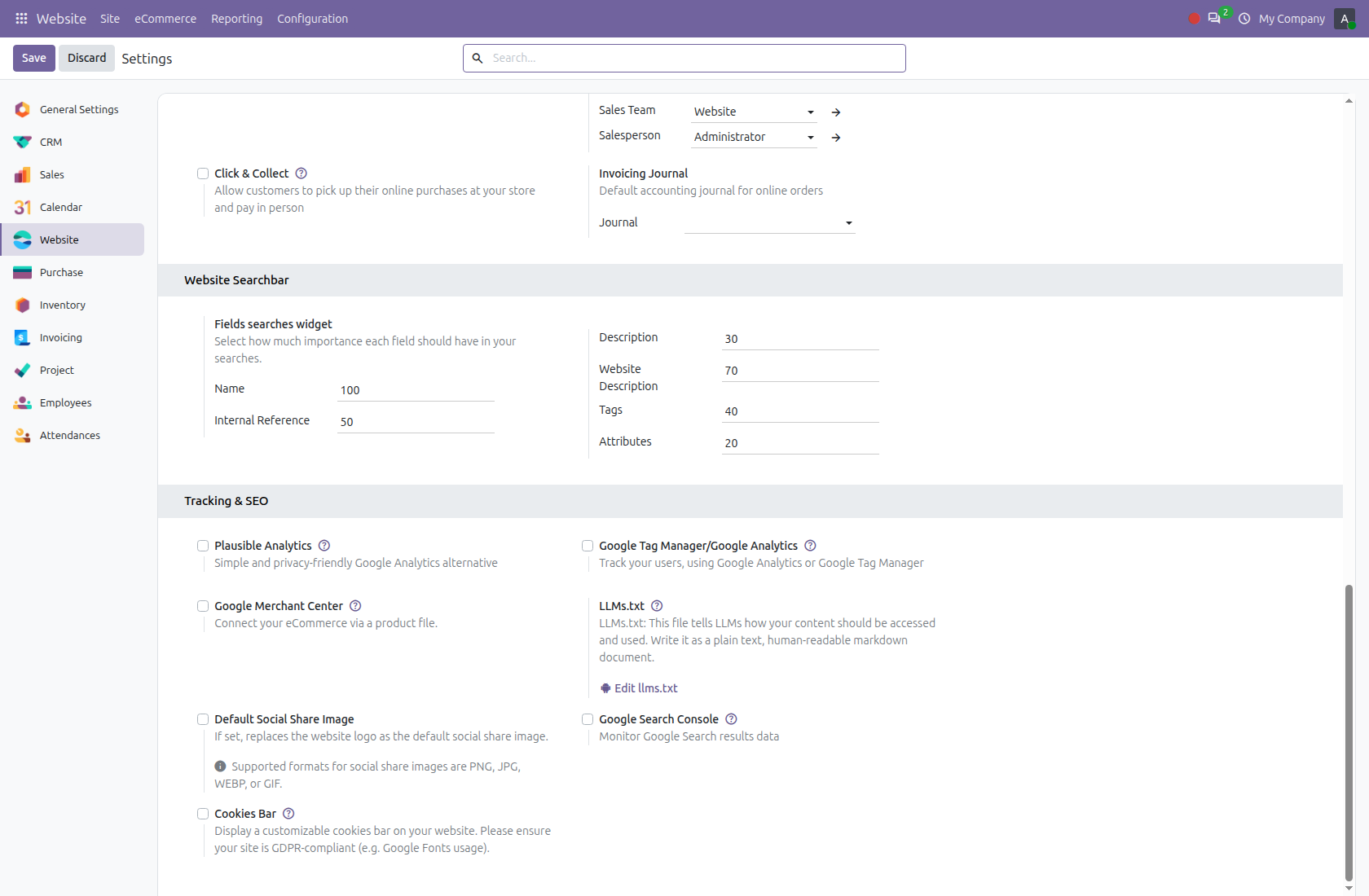
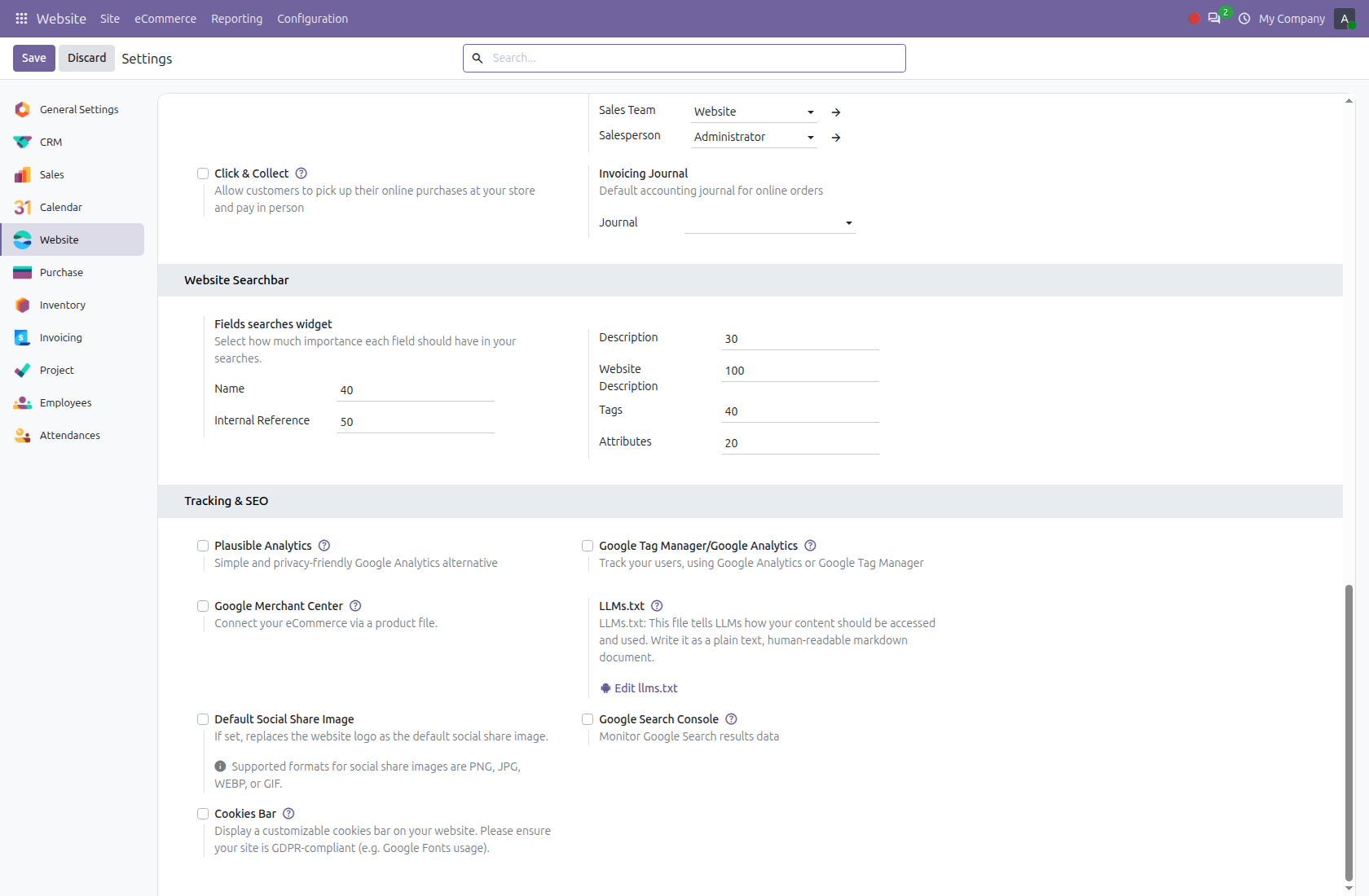
Open Website â Configuration â Settings and find Website Searchbar. Choose the website you want to configure, enter weights from 0 to 100, then Save. The defaults shown are Name 100, Internal Reference 50, Description 30, Website Description 70, Tags 40 and Attributes 20. Higher weights give that field more influence; 0 excludes it from weighted matching. Keep at least one positive weight to use weighted search; setting all six to 0 returns to standard Odoo search.
2. Prepare and publish searchable product information
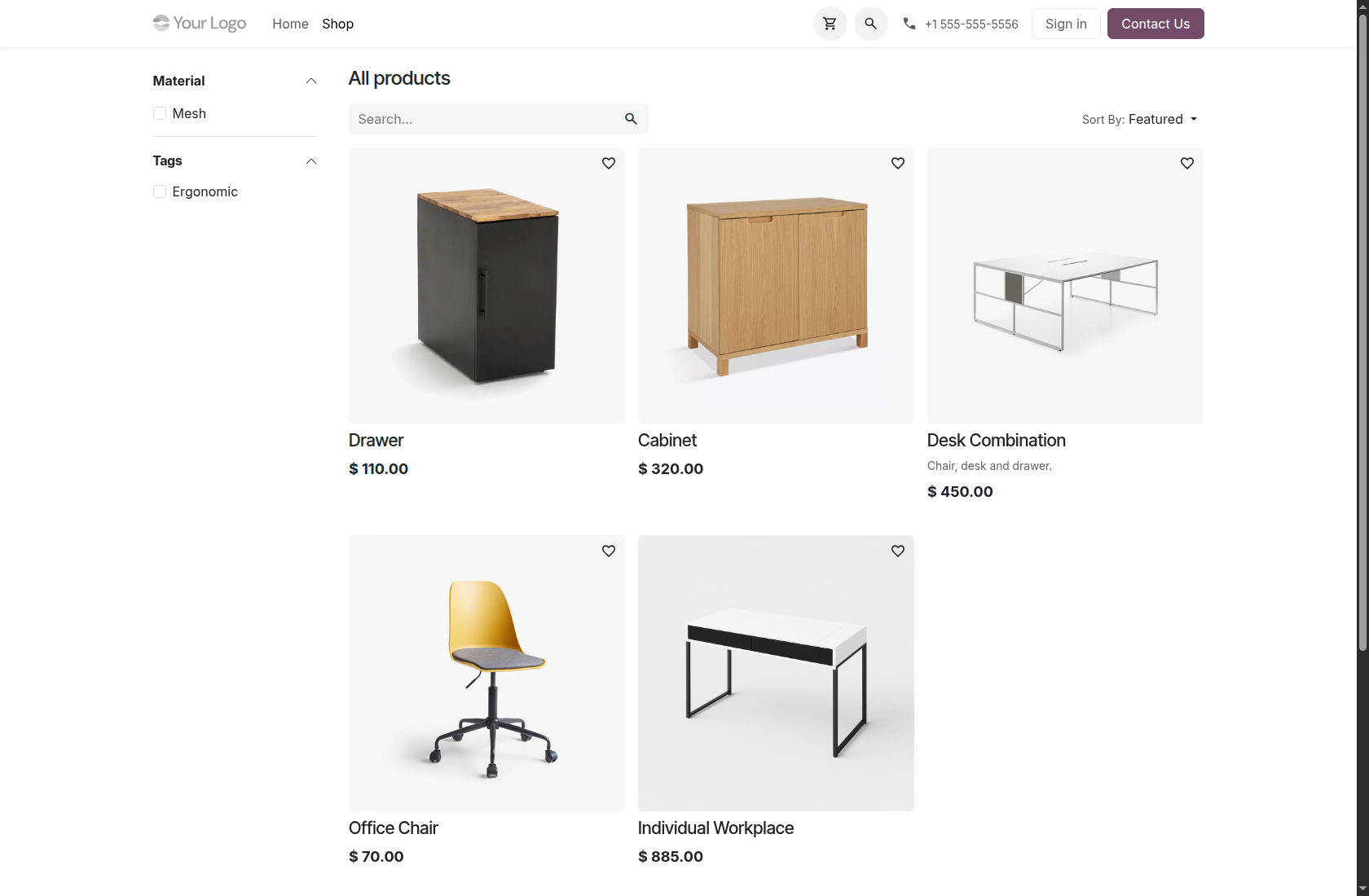
Publish your products on the intended website and maintain the fields customers will search. The five demo products shown below are deliberately simple: Drawer matches by name; Cabinet has âIncludes a drawerâ in its Website Description; Desk Combination has âChair, desk and drawer.â in its Sales Description. Office Chair has reference CHAIR-2026, tag Ergonomic and attribute Material: Mesh. Individual Workplace is used for the spelling example. The module uses Odooâs existing shop interface.
3. Type a query and review live suggestions
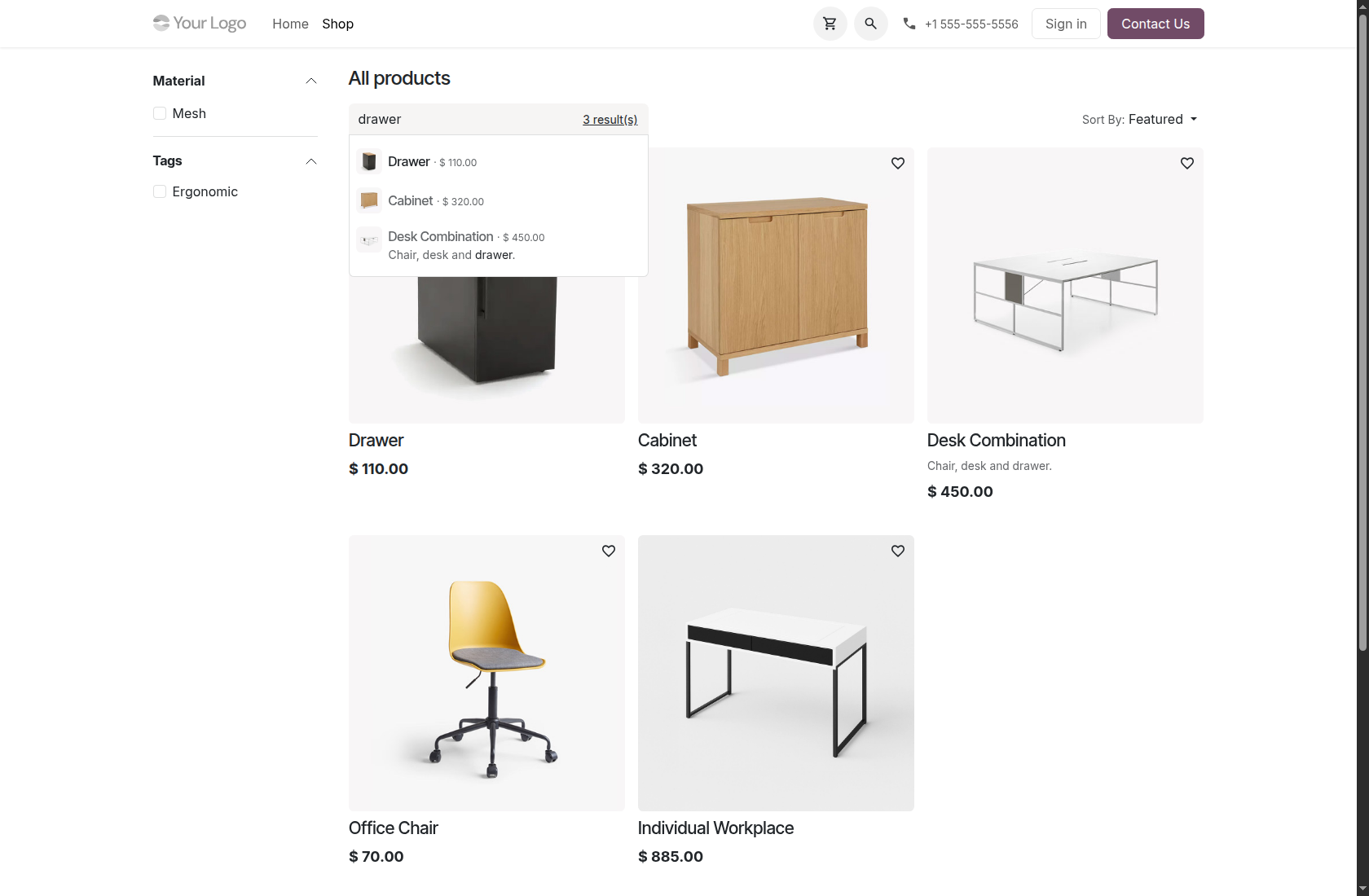
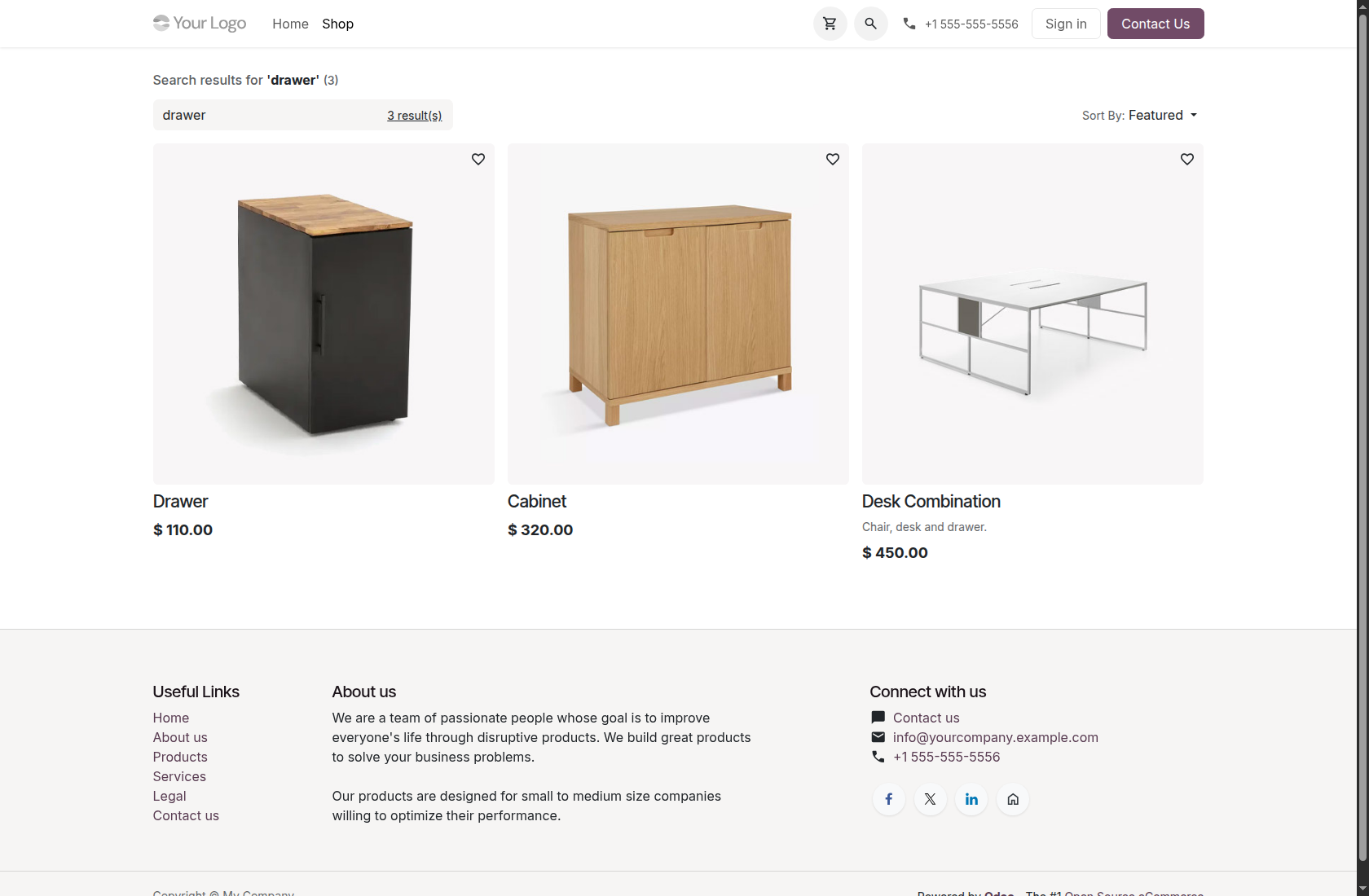
In the shop search box, type drawer and pause before submitting. The suggestion dropdown shows matching products, their images and prices. In this demo the suggestions begin with Drawer, followed by Cabinet and Desk Combination. Select a suggestion to open a product directly, or submit the query to see the complete results page.
4. Submit the query and understand the ranking
Submit drawer with the default weights and the default Featured sorting. The result order is Drawer â Cabinet â Desk Combination. The direct name match leads; the Website Description match follows; the Sales Description match comes next. The query and result count remain visible, so shoppers can see what they searched for and how many products matched. Additional product data can change relevance in a real catalog.
5. Change which field matters most
Return to Website Searchbar settings. For this example, change Name to 40 and Website Description to 100, leave the other four values unchanged, then Save. This gives website-description matches more importance than name matches for the next search. No custom storefront layout or additional search form is required.
6. Repeat the search and compare the result order
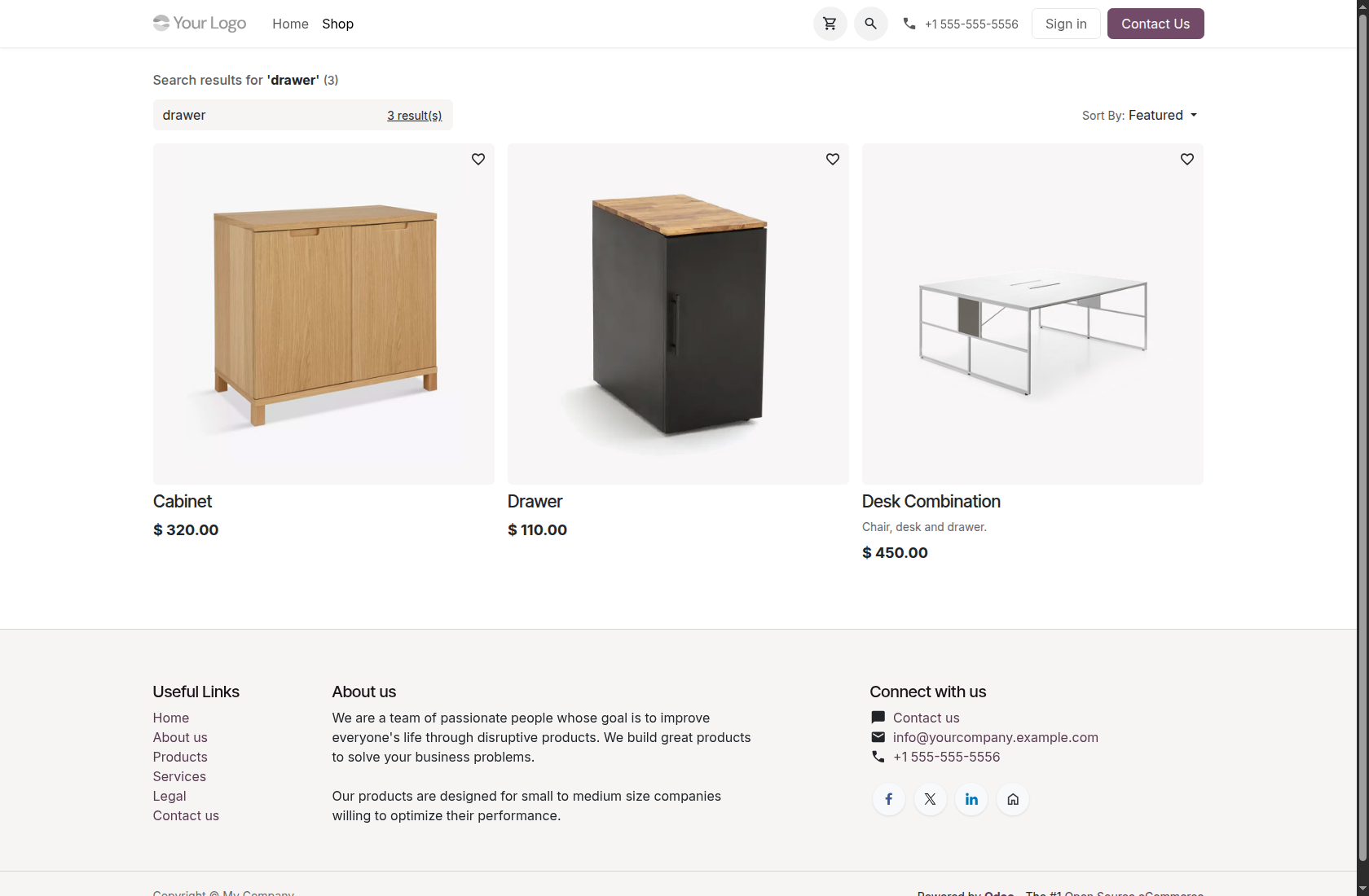
Refresh the shop and submit drawer again using the default Featured sorting. Cabinet now appears first, followed by Drawer and Desk Combination. Cabinet moves up because its Website Description contains the query and that field now has the highest weight. After trying this example, restore Name to 100 and Website Description to 70, then Save before continuing with the remaining default-weight examples.
7. Find a product using its internal reference
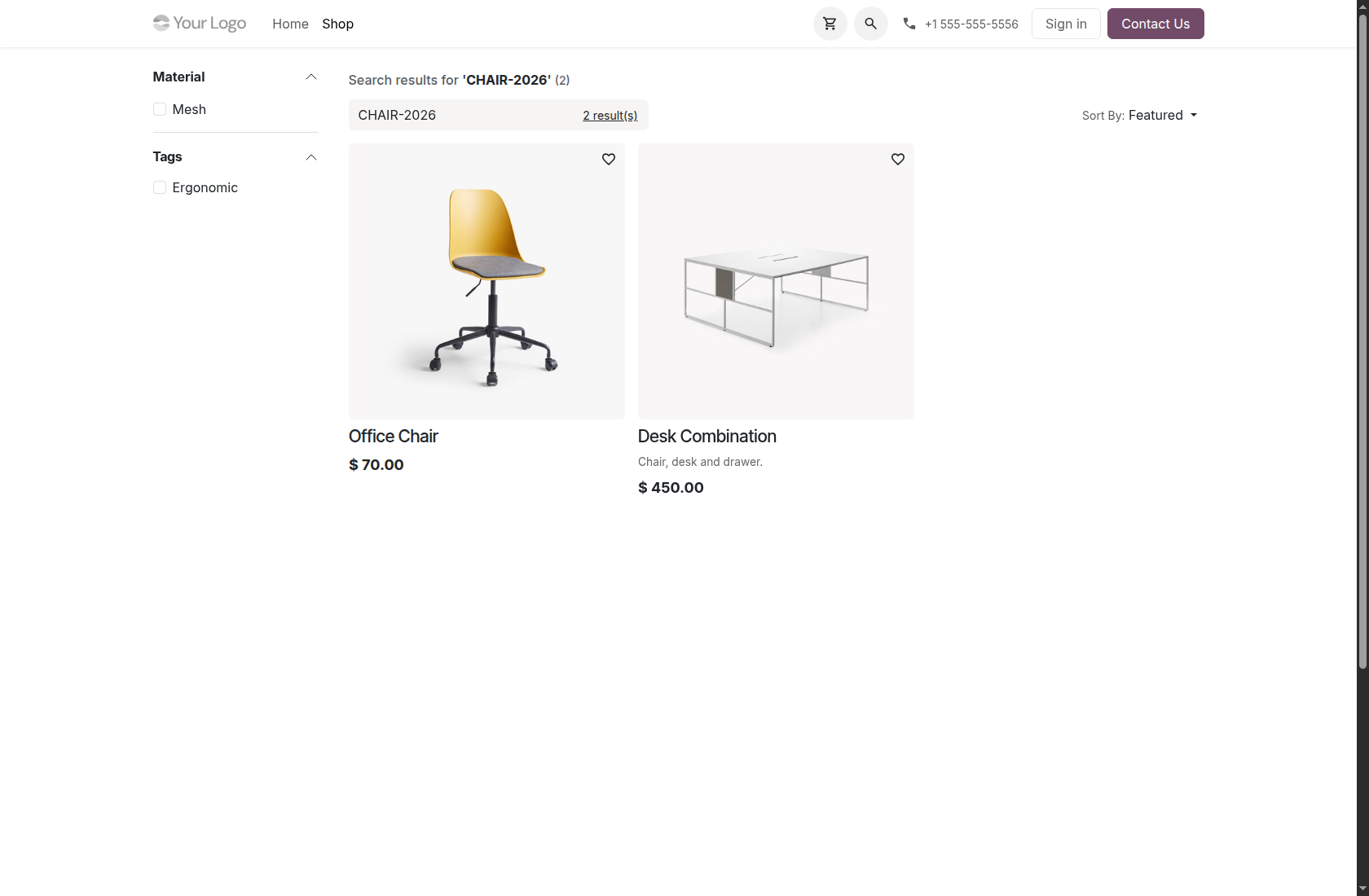
Search CHAIR-2026 with Internal Reference enabled. Office Chair is returned first even though its product name does not contain that reference. Shoppers who know an item code can use the same search box as customers searching by name. Similar matches may also be returned by typo-tolerant matching; the screenshot shows the actual demo results rather than an exact-only filter.
8. Open the product and continue shopping
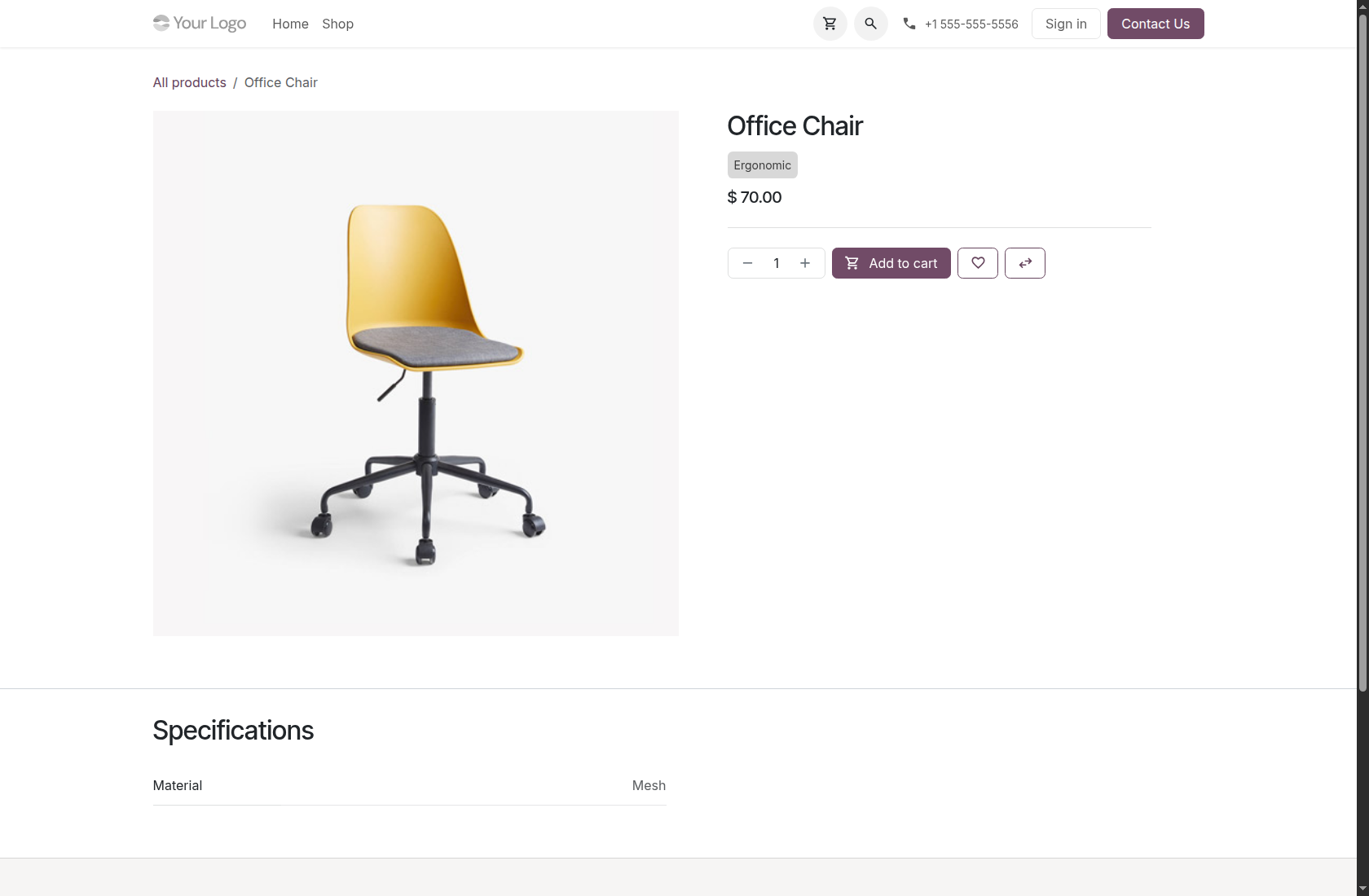
Click Office Chair in the results or select it from a live suggestion. Odoo opens its normal product page, where the shopper can inspect the product, choose any available options and continue through the standard purchase flow. The search module helps discover the product; product pricing, variants, cart and checkout continue to use Odooâs normal behaviour.
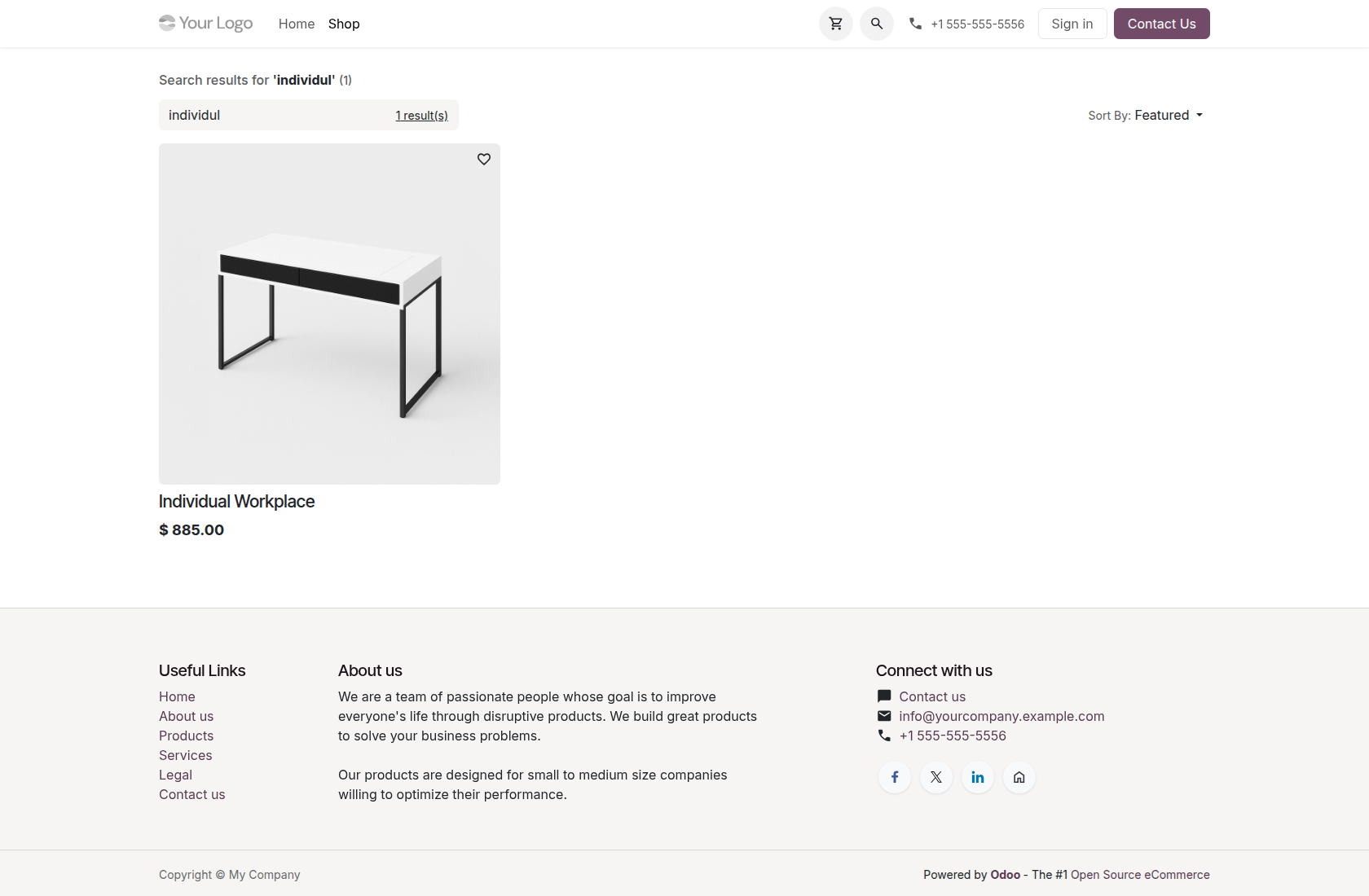
9. Find a product despite an imperfect spelling
For this isolated demonstration, set Name to 100 and the other five weights to 0, then Save. Search individul, which omits a letter from individual. Individual Workplace is still found because the query shares enough character sequences with its name. Typo tolerance is similarity-based: it does not guarantee a match for every misspelling. Restore the six default weights after the example.
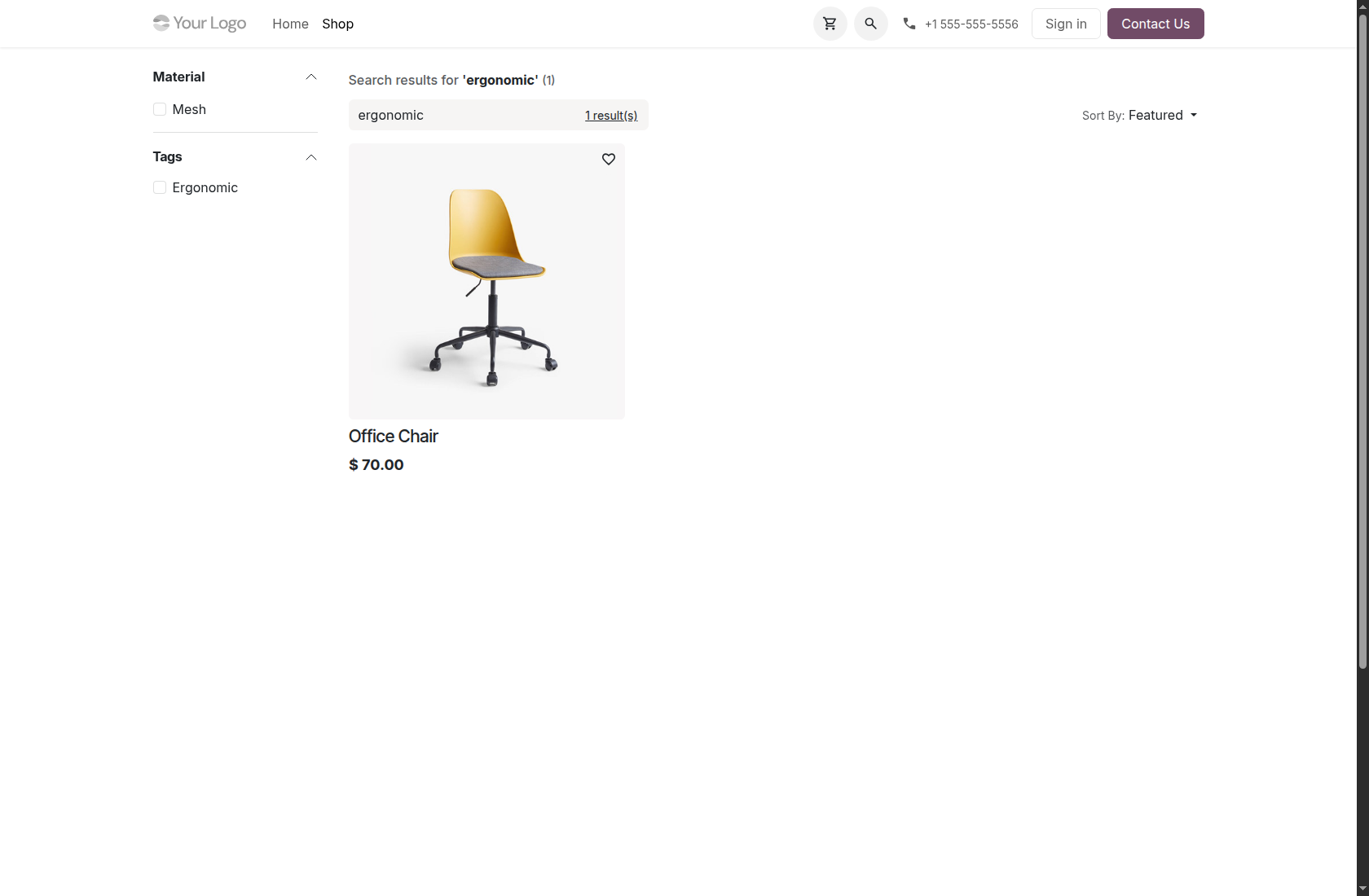
10. Search using a product tag
With the default weights restored, search ergonomic. Office Chair appears because the demo product carries the Ergonomic tag, even though that word is absent from its name. Tags provide another way for customers to discover products when the Tags weight is positive. The product must still be available to the current website visitor.
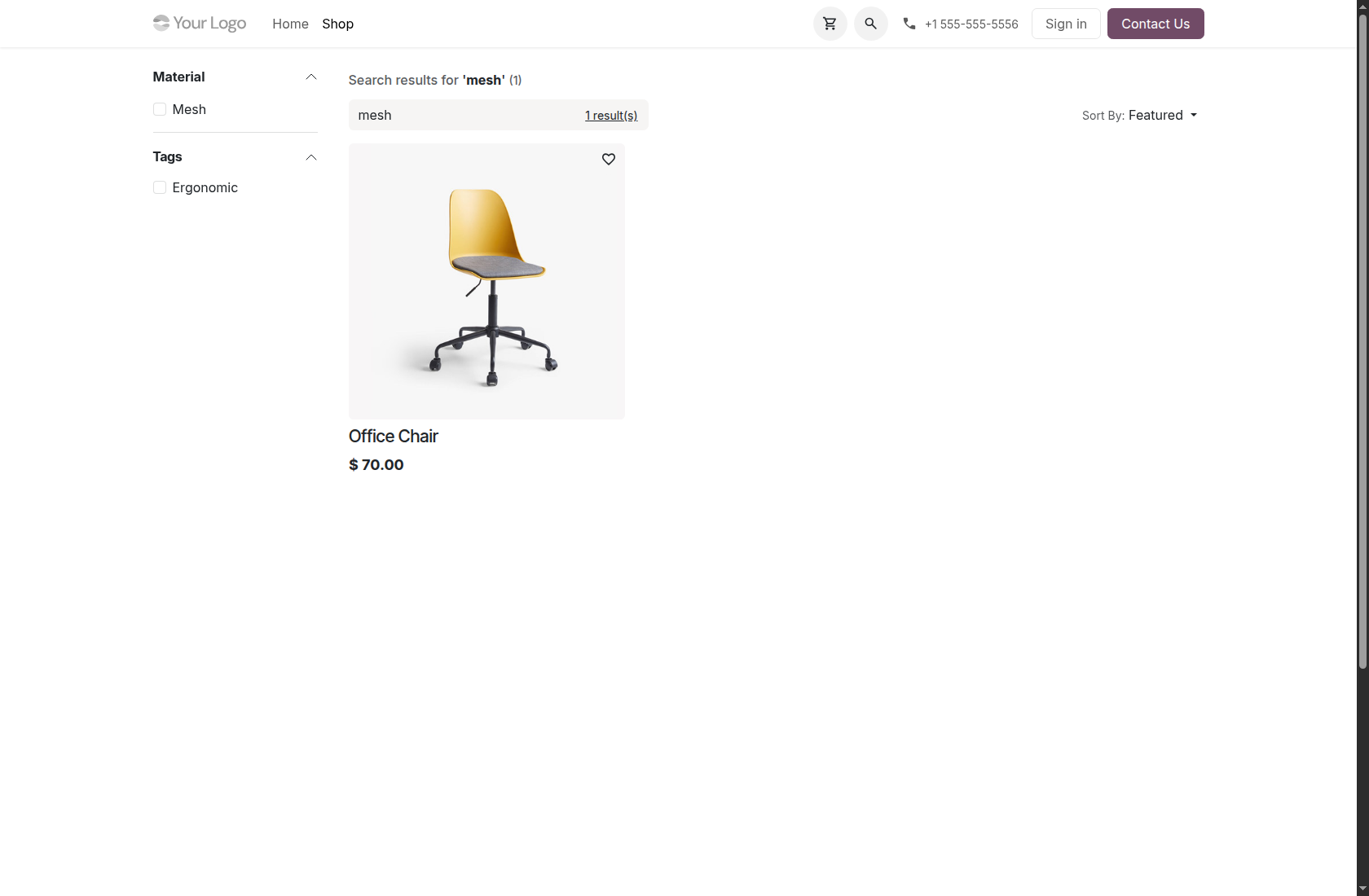
11. Search using an attribute value
Search mesh. Office Chair is found through its Material: Mesh attribute value. This is useful when customers know the material, finish or another characteristic rather than the product name. Maintain the relevant attribute values on the product and keep Attributes above 0 in the websiteâs search settings.
12. Keep the shopperâs explicit sorting choice
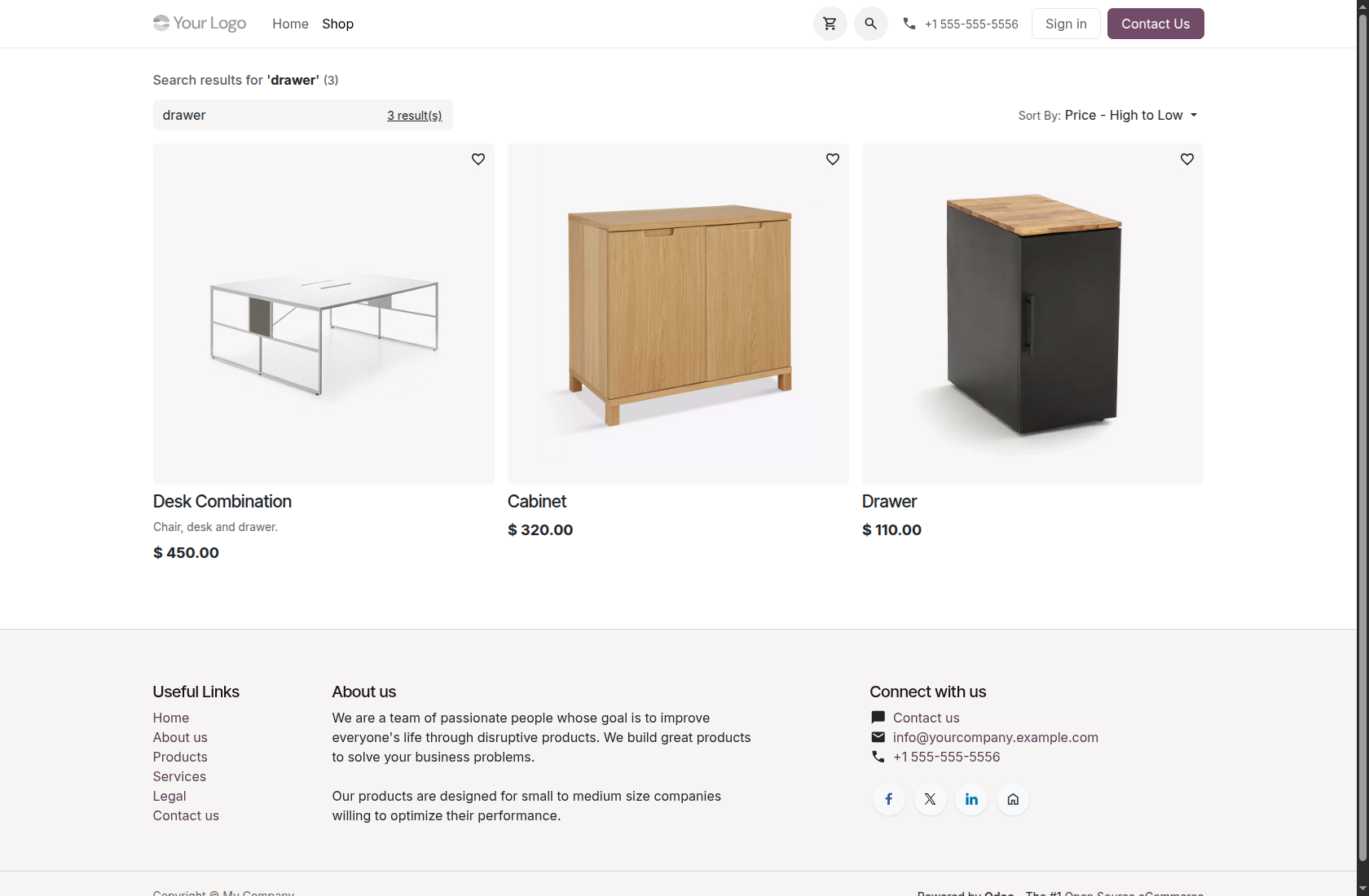
After searching drawer, choose Price: High to Low from the normal Sort By menu. The order becomes Desk Combination ($450), Cabinet ($320), then Drawer ($110). The search still determines which products match, while the shopperâs explicit price sort determines their display order. Use the default Featured sorting when demonstrating weighted relevance.
13. Handle a query with no suitable match
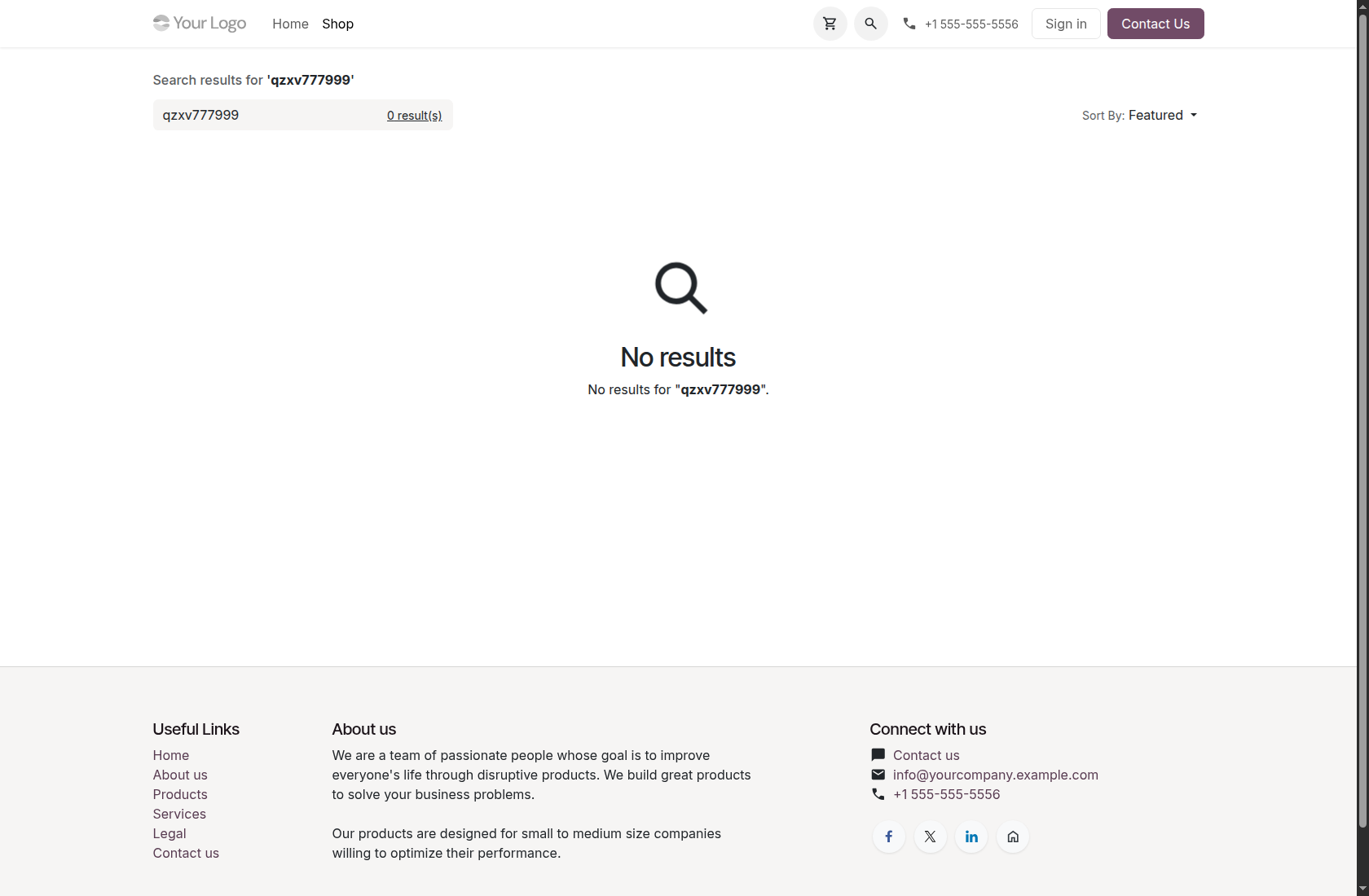
Search for a term with no useful similarity, such as qzxv777999. The normal Odoo no-results page appears instead of inventing a product match. The shopper can clear the query, try a product name, code, tag or attribute, and search again. The walkthrough ends with the default weights restored.
Legal
License
Odoo Proprietary License v1.0 This software and associated files (the "Software") may only be used (executed, modified, executed after modifications) if you have purchased a valid license from the authors, typically via Odoo Apps, or if you have received a written agreement from the authors of the Software (see the COPYRIGHT file). You may develop Odoo modules that use the Software as a library (typically by depending on it, importing it and using its resources), but without copying any source code or material from the Software. You may distribute those modules under the license of your choice, provided that this license is compatible with the terms of the Odoo Proprietary License (For example: LGPL, MIT, or proprietary licenses similar to this one). It is forbidden to publish, distribute, sublicense, or sell copies of the Software or modified copies of the Software. The above copyright notice and this permission notice must be included in all copies or substantial portions of the Software. THE SOFTWARE IS PROVIDED "AS IS", WITHOUT WARRANTY OF ANY KIND, EXPRESS OR IMPLIED, INCLUDING BUT NOT LIMITED TO THE WARRANTIES OF MERCHANTABILITY, FITNESS FOR A PARTICULAR PURPOSE AND NONINFRINGEMENT. IN NO EVENT SHALL THE AUTHORS OR COPYRIGHT HOLDERS BE LIABLE FOR ANY CLAIM, DAMAGES OR OTHER LIABILITY, WHETHER IN AN ACTION OF CONTRACT, TORT OR OTHERWISE, ARISING FROM, OUT OF OR IN CONNECTION WITH THE SOFTWARE OR THE USE OR OTHER DEALINGS IN THE SOFTWARE
Terms
Terms and conditions
OdooSphere Apps Terms & Conditions
By purchasing an app from OdooSphere, the customer agrees to the following terms.
Payment
All payments must be completed immediately through the website checkout. Orders are processed only after successful payment confirmation from the payment provider.
Delivery
After payment confirmation, the purchased module will be delivered digitally as a ZIP file through email or the customer portal, where applicable.
Support Period
Each purchased app includes 90 days of free support from the purchase date.
- Help during the installation process
- Assistance with module setup and basic configuration
- Bug fixes related to the purchased module
- Guidance for using the app as described on the product page
Support Exclusions
- Custom feature development
- Changes for special business workflows
- Odoo server setup, hosting, or deployment issues
- Conflicts caused by third-party modules
- Migration to another Odoo version unless clearly included
- Issues caused by direct changes to the module source code
- Training, data entry, or consulting beyond the purchased app scope
Compatibility
Apps are provided for the Odoo versions mentioned on the product page. The customer is responsible for selecting the correct Odoo version before purchase.
Refund Policy
Since apps are digital products delivered after payment, purchases are generally non-refundable. Refunds may be considered only if payment was duplicated, the ZIP file was not delivered, or the app cannot work on the listed compatible Odoo version due to a confirmed issue in the delivered module.
License & Usage
The purchased app is licensed for use by the purchasing customer or company. Reselling, redistributing, publishing, or sharing the module with third parties is not allowed without written permission from OdooSphere.
Updates
Free updates are not guaranteed unless specifically mentioned on the product page. Bug fixes within the 90-day support period may be provided when the issue is confirmed to be caused by the purchased app.
Limitation of Liability
OdooSphere is not responsible for business losses, data loss, downtime, third-party service issues, or problems caused by incorrect installation, custom changes, or incompatible modules.
Reviews
Discuss this module
Logged-in users can ask questions, discuss implementation details, and rate this module. Your rating updates the app score across the marketplace.