
Bulk Payments Reset
v20.0
Accounting
Reset or cancel multiple payments from one wizard


Module index
Choose which journals each user can see and use.
Give each accountant a clear set of permitted journals. Configure an allowance on the user, enable the restriction and keep journal lists, dashboards and payment choices focused on that userâs work. Turn the restriction off whenever normal access is needed.
Install on Odoo 19, then open a user as a user administrator. Select Journals and enable Restrict Journal Features in Access Rights. Odoo 19 shows Journal Restriction under Accounting in normal mode. Access Rights For Restrict Journal displays the fields without applying a restriction. The user still needs normal accounting access. An empty allowance hides all journals. Settings administrators are also restricted when enrolled; keep an unrestricted administrator available. Existing invoices and payments are not hidden, and reading a disallowed journalâs protected fields can raise an access error. Explicit sudo operations remain exempt. Custom modules require Odoo.sh or an on-premise installation.
The screenshots below show the complete flow in Odoo 19: configure Alex Morgan, review the restricted choices, then restore normal access.
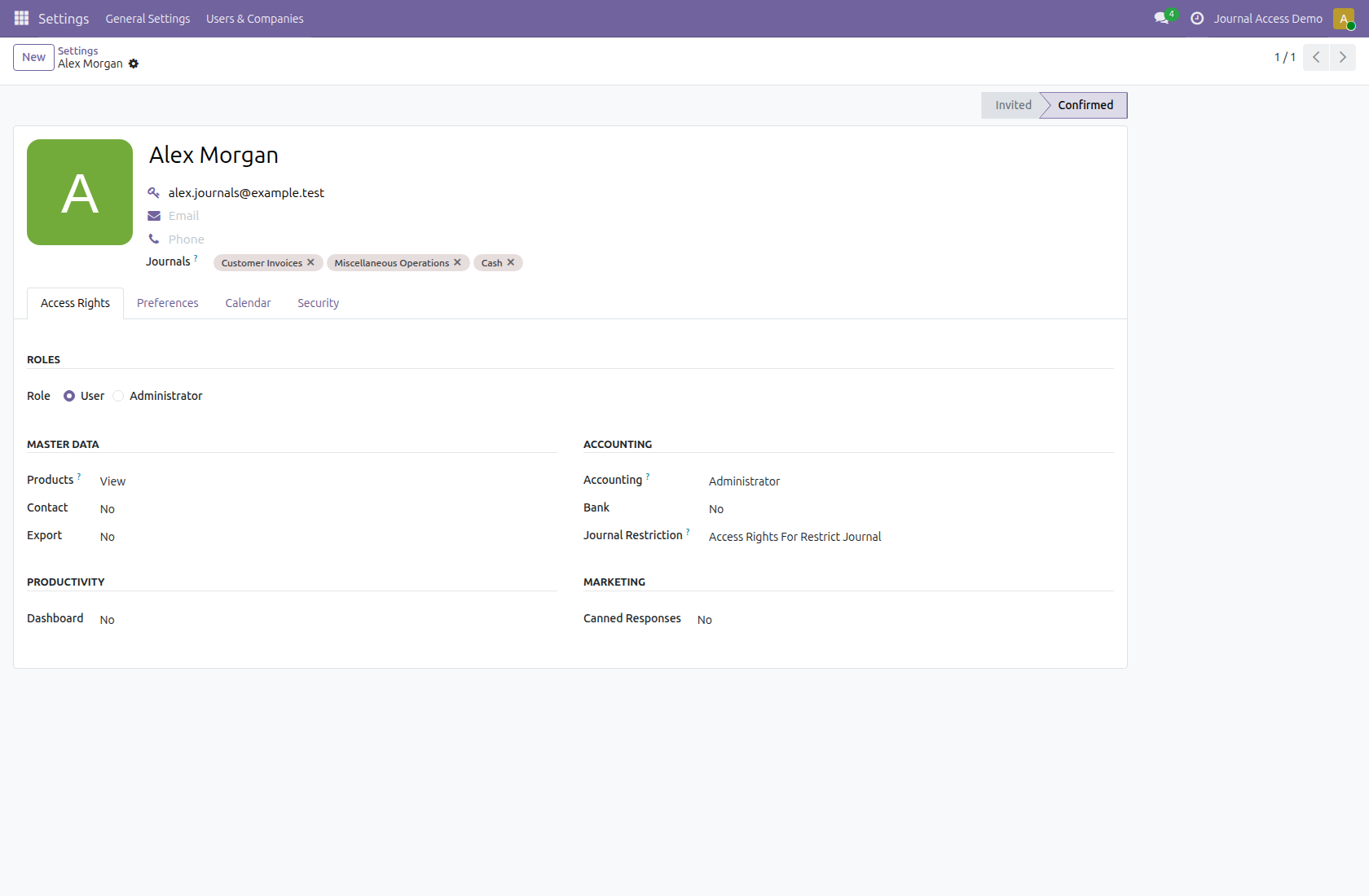
Open Settings â Users & Companies â Users as a user administrator. For Alex Morgan, select Customer Invoices, Miscellaneous Operations and Cash in Journals. Select journals from the userâs allowed companies and save.
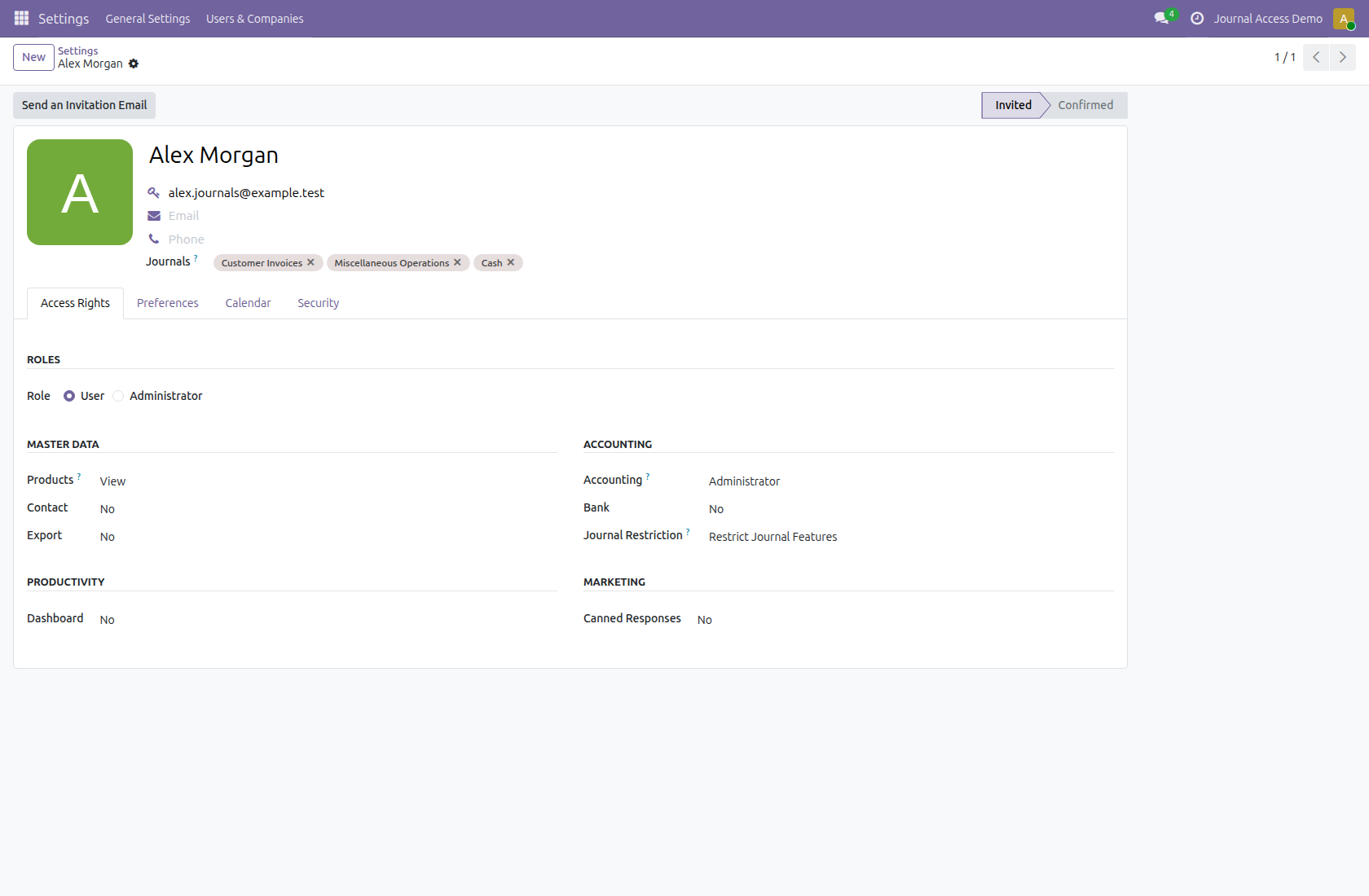
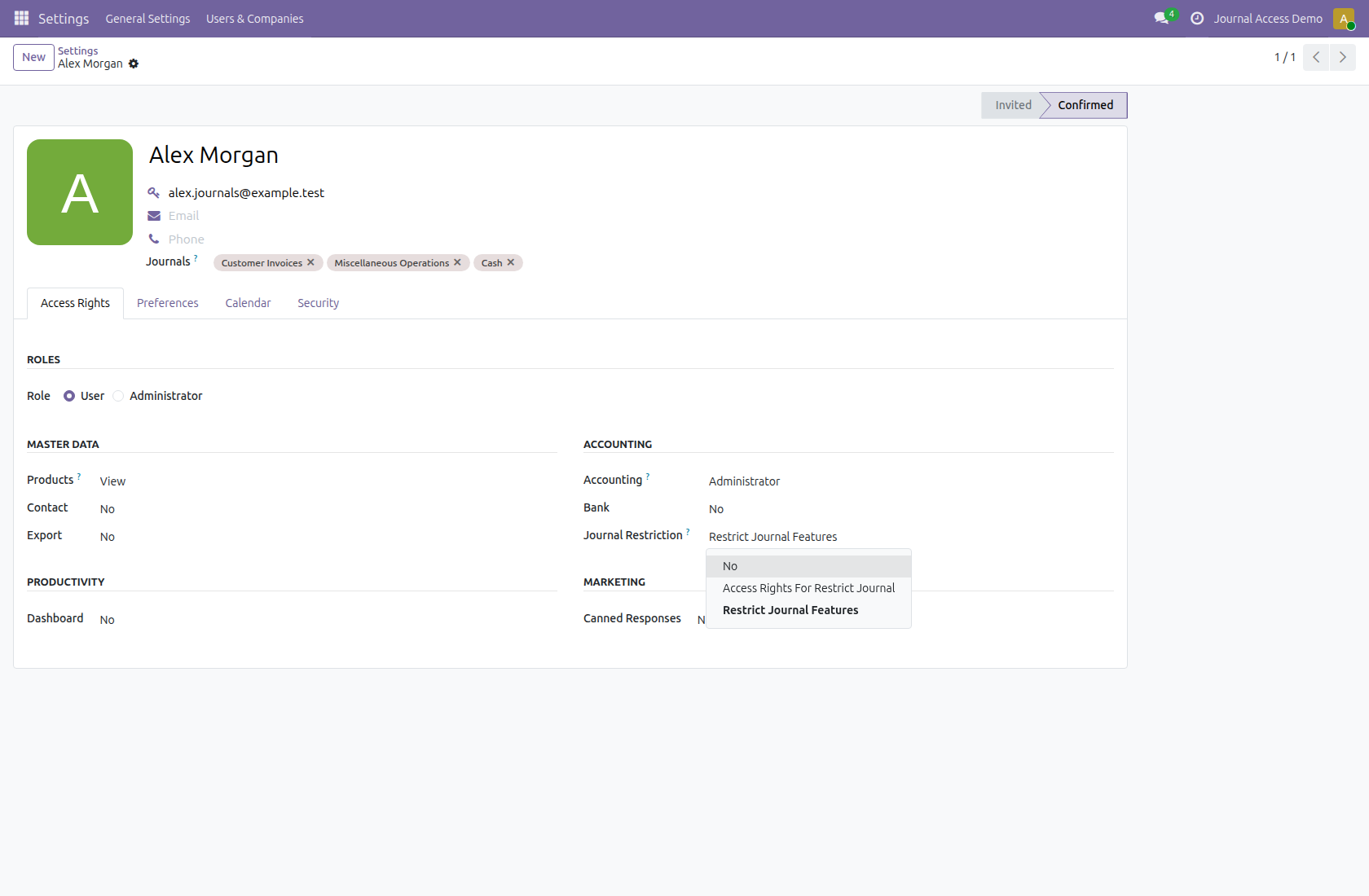
In Access Rights, enable Restrict Journal Features. It also enables the right that displays the Journals and Users fields. The display right on its own leaves normal journal access unchanged.
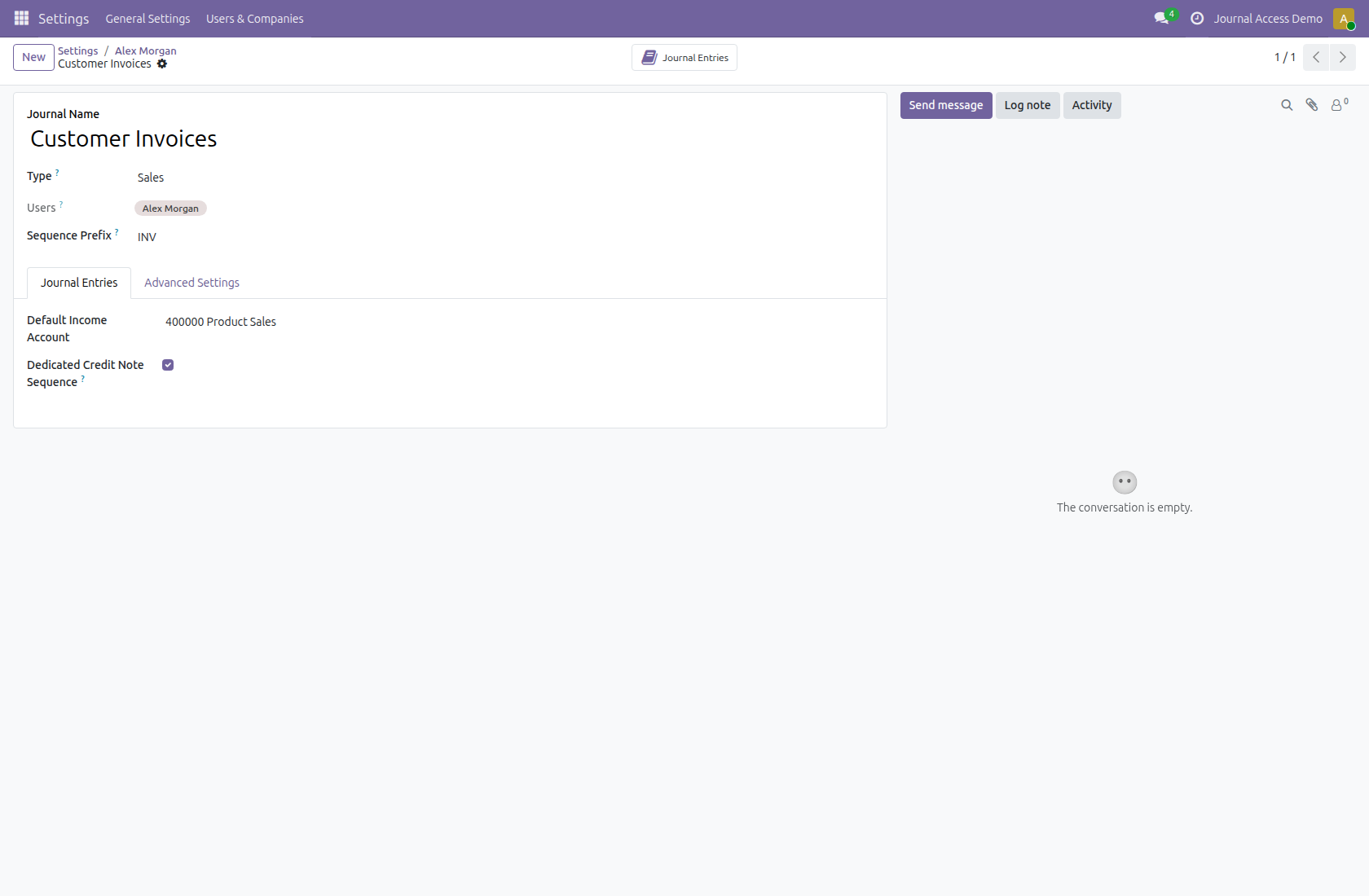
Open Customer Invoices from Accounting â Configuration â Journals. Users lists Alex Morgan as an explicitly assigned user. This field is read-only here; manage journal assignments on the user form.
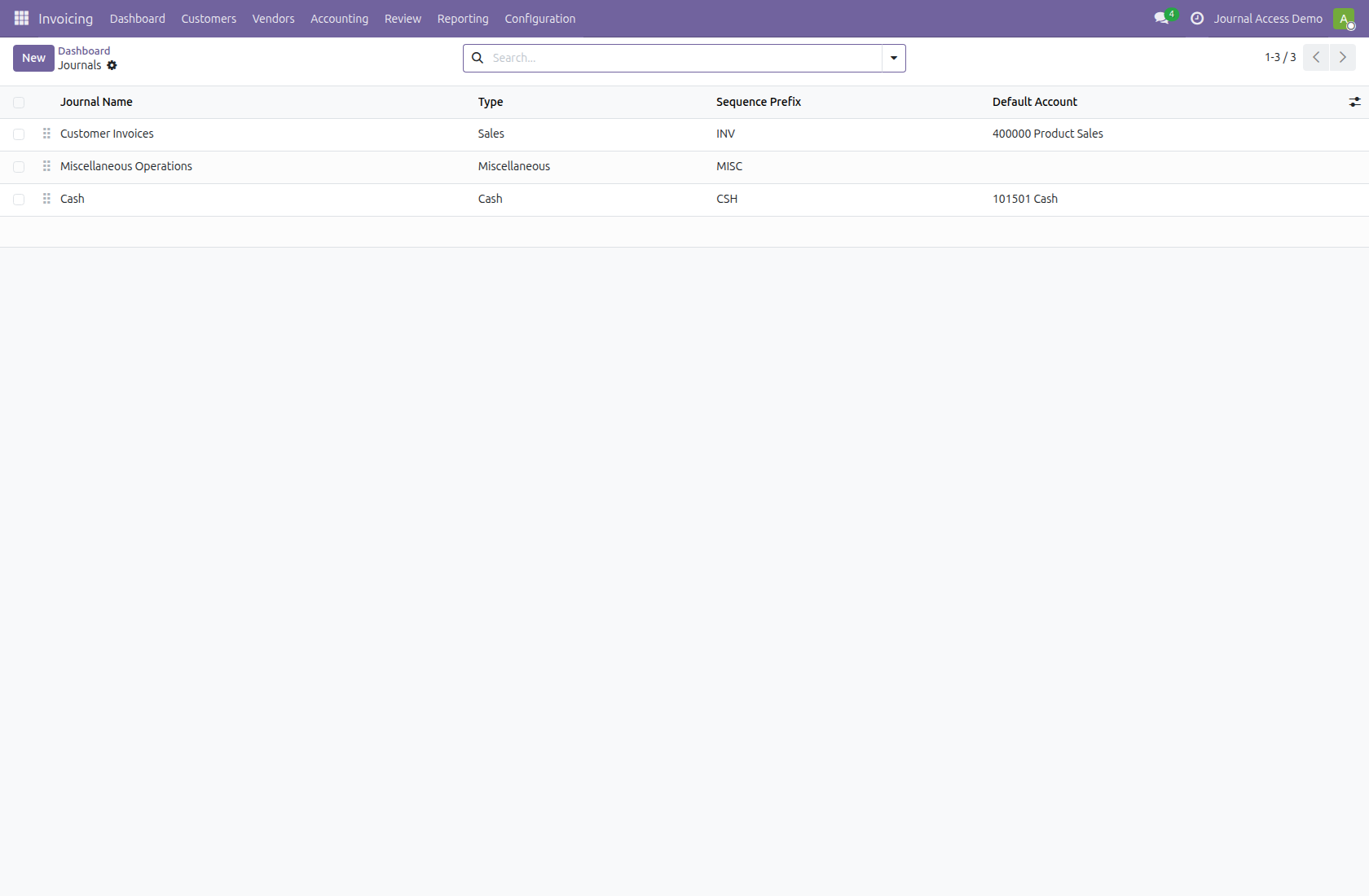
Sign in as Alex Morgan and open Journals. Only Customer Invoices, Miscellaneous Operations and Cash appear. Bank and Vendor Bills remain outside this userâs allowance. Standard company rules continue to apply.
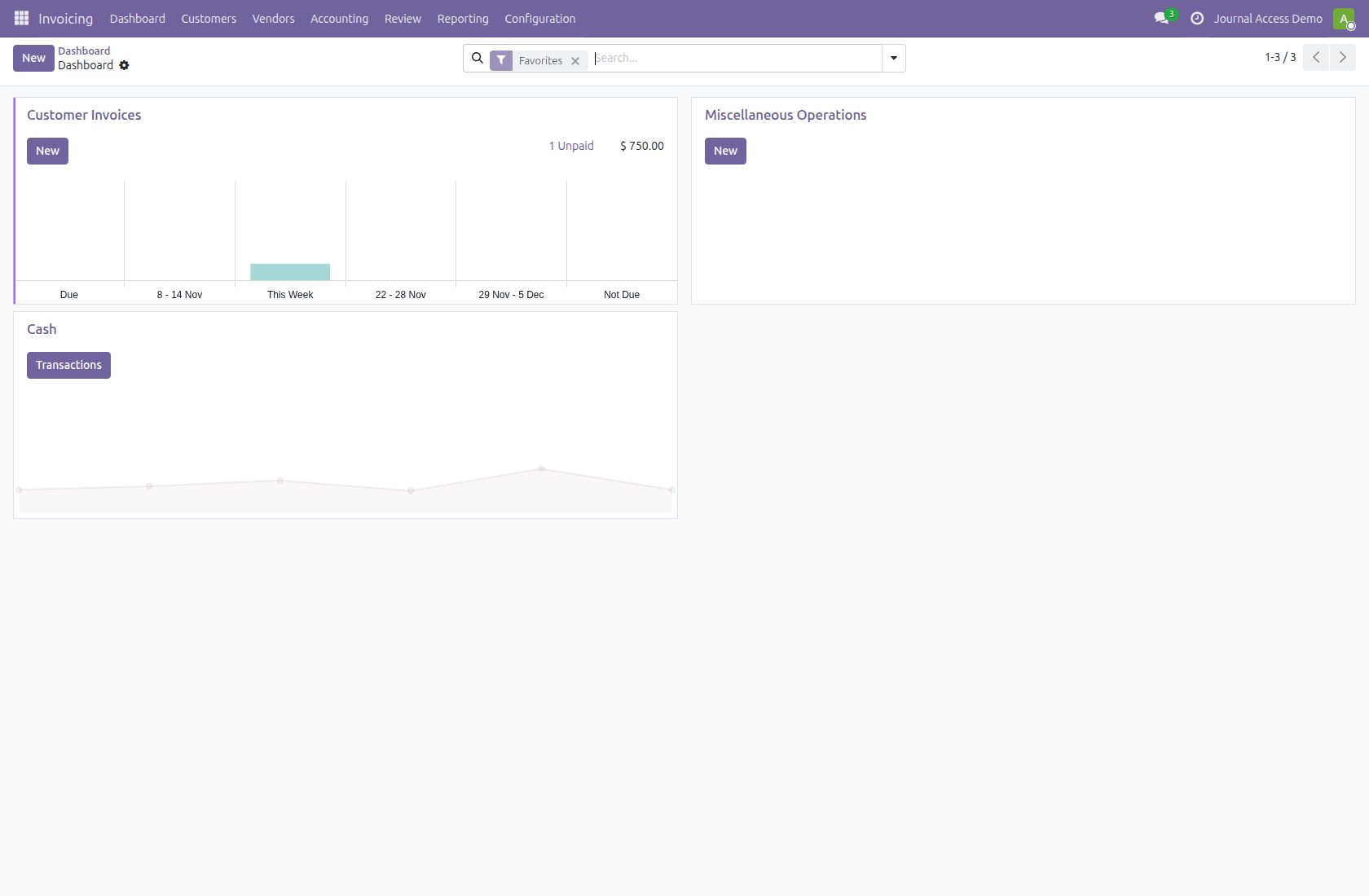
Alexâs accounting dashboard shows only the allowed journals configured to appear on the dashboard. Customer Invoices, Cash and Miscellaneous Operations are visible; Bank and Vendor Bills are excluded.
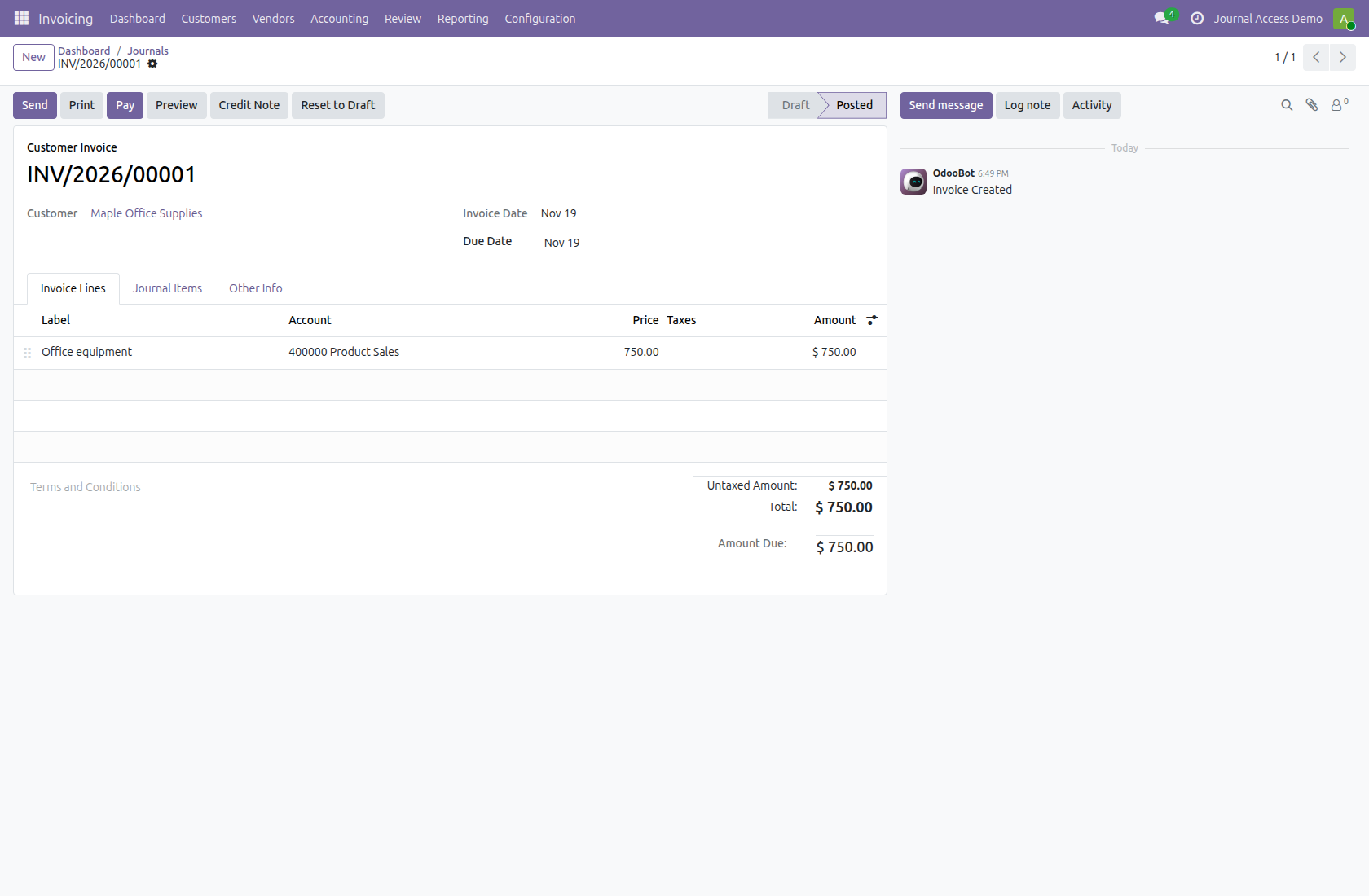
Open Maple Office Suppliesâ posted $750 invoice in Customer Invoices. This sales journal belongs to Alexâs allowance. Choose Pay to open the standard payment wizard.
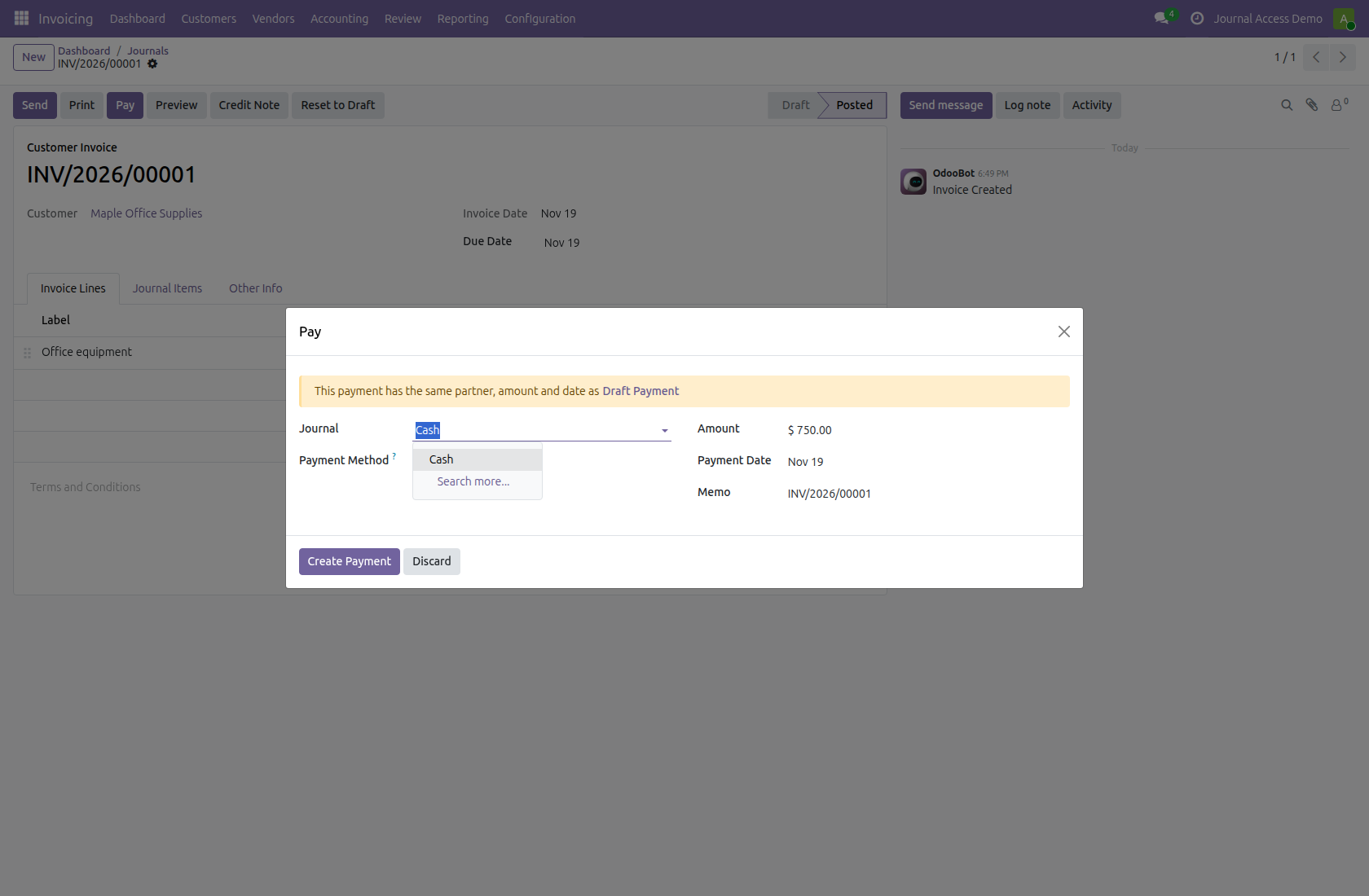
The payment wizard offers Cash for this $750 receipt. Sales and miscellaneous journals are not payment journals; Bank is excluded because Alex has no allowance for it. A preferred disallowed journal falls back to an eligible allowed journal.
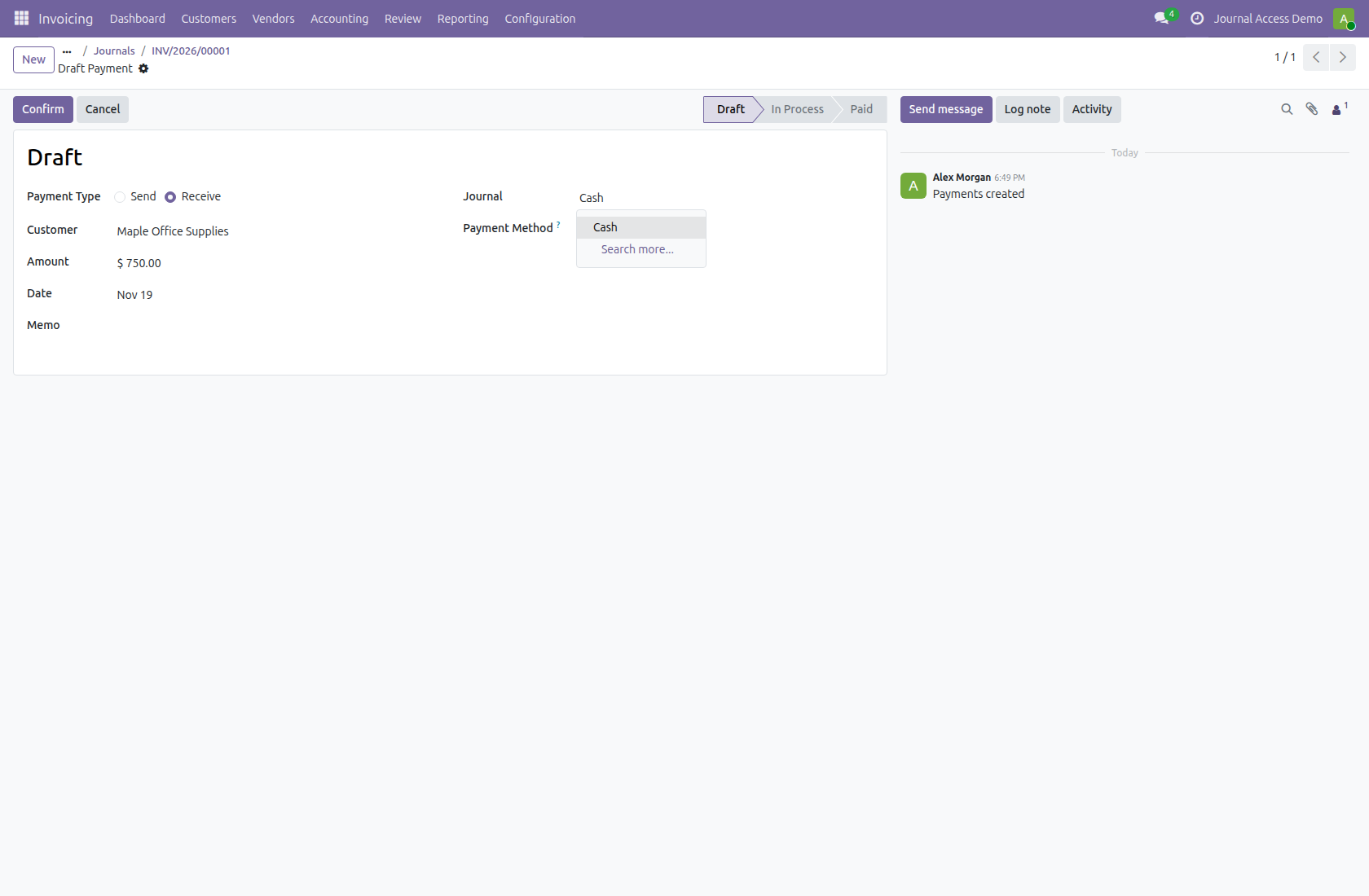
The customer payment form also offers Cash. The restriction applies to both incoming and outgoing payment choices, while Odooâs payment-method and company checks remain active.
Return to Alexâs user form as an administrator. Keep the field-display right but turn off Restrict Journal Features, then save. The selected Journals remain available for later reuse.
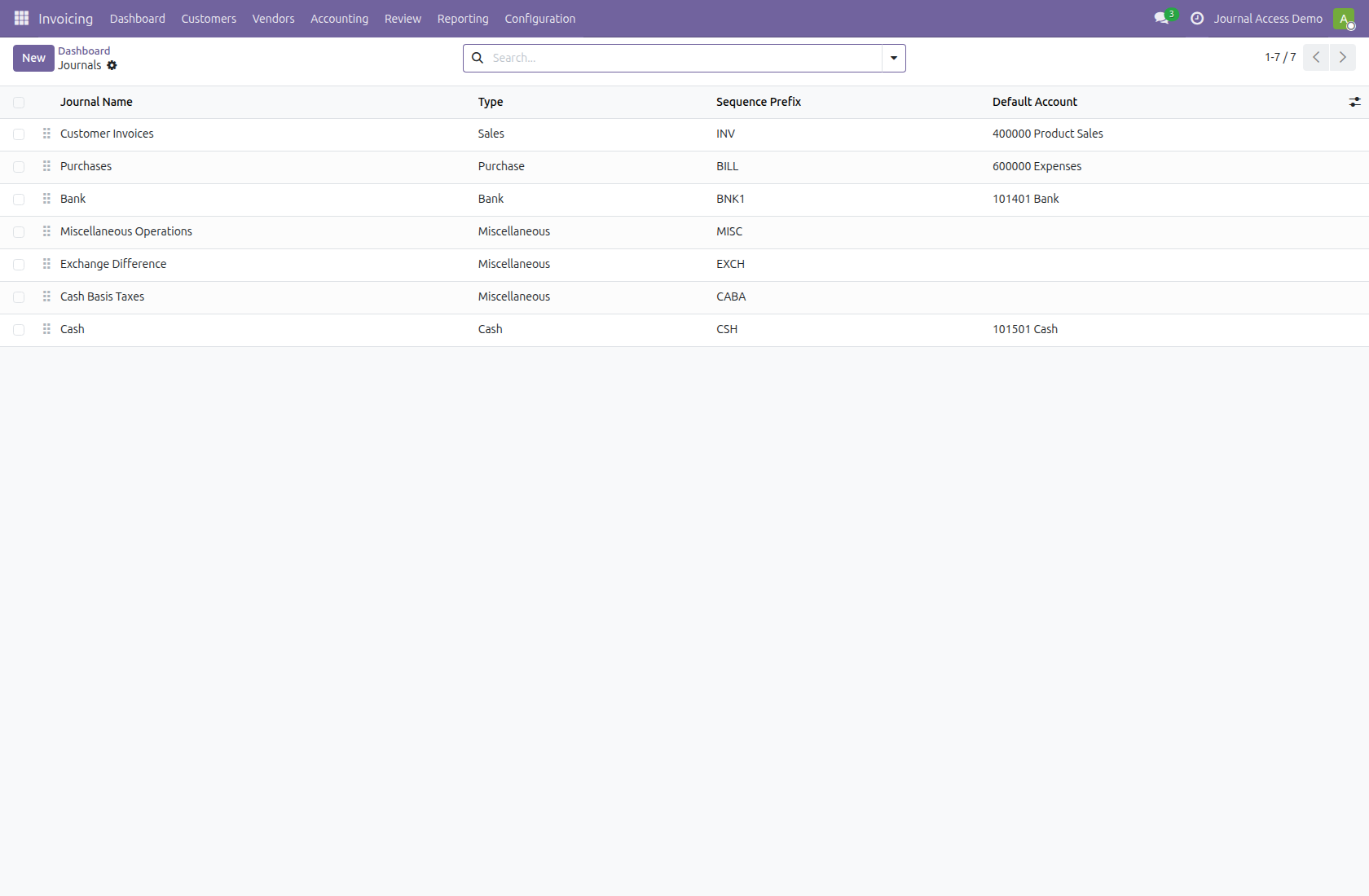
Sign in again as Alex and reopen Journals. The full set permitted by the userâs normal accounting and company rights is available again, including Bank and Vendor Bills. Re-enabling the restriction reapplies the saved allowance.
Legal
Odoo Proprietary License v1.0 This software and associated files (the "Software") may only be used (executed, modified, executed after modifications) if you have purchased a valid license from the authors, typically via Odoo Apps, or if you have received a written agreement from the authors of the Software (see the COPYRIGHT file). You may develop Odoo modules that use the Software as a library (typically by depending on it, importing it and using its resources), but without copying any source code or material from the Software. You may distribute those modules under the license of your choice, provided that this license is compatible with the terms of the Odoo Proprietary License (For example: LGPL, MIT, or proprietary licenses similar to this one). It is forbidden to publish, distribute, sublicense, or sell copies of the Software or modified copies of the Software. The above copyright notice and this permission notice must be included in all copies or substantial portions of the Software. THE SOFTWARE IS PROVIDED "AS IS", WITHOUT WARRANTY OF ANY KIND, EXPRESS OR IMPLIED, INCLUDING BUT NOT LIMITED TO THE WARRANTIES OF MERCHANTABILITY, FITNESS FOR A PARTICULAR PURPOSE AND NONINFRINGEMENT. IN NO EVENT SHALL THE AUTHORS OR COPYRIGHT HOLDERS BE LIABLE FOR ANY CLAIM, DAMAGES OR OTHER LIABILITY, WHETHER IN AN ACTION OF CONTRACT, TORT OR OTHERWISE, ARISING FROM, OUT OF OR IN CONNECTION WITH THE SOFTWARE OR THE USE OR OTHER DEALINGS IN THE SOFTWARE
Terms
By purchasing an app from OdooSphere, the customer agrees to the following terms.
All payments must be completed immediately through the website checkout. Orders are processed only after successful payment confirmation from the payment provider.
After payment confirmation, the purchased module will be delivered digitally as a ZIP file through email or the customer portal, where applicable.
Each purchased app includes 90 days of free support from the purchase date.
Apps are provided for the Odoo versions mentioned on the product page. The customer is responsible for selecting the correct Odoo version before purchase.
Since apps are digital products delivered after payment, purchases are generally non-refundable. Refunds may be considered only if payment was duplicated, the ZIP file was not delivered, or the app cannot work on the listed compatible Odoo version due to a confirmed issue in the delivered module.
The purchased app is licensed for use by the purchasing customer or company. Reselling, redistributing, publishing, or sharing the module with third parties is not allowed without written permission from OdooSphere.
Free updates are not guaranteed unless specifically mentioned on the product page. Bug fixes within the 90-day support period may be provided when the issue is confirmed to be caused by the purchased app.
OdooSphere is not responsible for business losses, data loss, downtime, third-party service issues, or problems caused by incorrect installation, custom changes, or incompatible modules.
Related modules
Reviews
Logged-in users can ask questions, discuss implementation details, and rate this module. Your rating updates the app score across the marketplace.
