Skip to Content
Mass Reset to Draft & Cancel Journal Entries
v20.0 Accounting/Accounting OPL-1

Mass Reset to Draft & Cancel Journal Entries

No reviews yet · 0 bought
$ odoo install os_reset_journal
Mass Reset to Draft & Cancel Journal Entries

Module index

App product page index

os_reset_journal
Community
Enterprise

Mass Reset & Cancel Journal Entries

Correct or cancel selected entries through Odoo’s native accounting workflow.

Overview

Select journal entries, invoices, bills or refunds and choose Set to Draft or Cancel Journal Entry. Each batch follows Odoo’s own accounting checks. Entries keep their numbers and history, while a summary reports how many changed and how many were already in the requested state.

Features

  • Set multiple posted or cancelled entries to Draft from the list’s Actions menu.
  • Cancel a mixed selection of Draft and Posted entries without deleting their journal-entry records.
  • Already-Draft and already-Cancelled entries are skipped and counted. The list refreshes automatically.
  • A blocked entry stops the whole batch. Native lock dates, hash locks, permissions and other accounting checks remain active.

Configuration

No extra configuration is required. Users need Odoo’s Invoicing/Billing access and permission to modify the selected records. Open the normal Journal Entries, invoice or bill list, select rows and use Actions. Enable Odoo’s standard accounting features/access to view Journal Items where necessary. Payment statuses follow their journal entries, and draft payment entries are preserved on cancellation. Odoo 19 retains reconciliations on reset to Draft and removes them on cancellation, matching its native buttons. These actions never bypass lock dates or hashes. If native processing would delete a related journal entry, including a following draft recurrence in Odoo 20, the operation is refused and the batch is rolled back.

Functional Walkthrough

Screenshots illustrate the shared workflow in Odoo 20. Odoo 19 uses its native list and form layout; use the same two Actions menu commands.

1. Select entries and choose Set to Draft

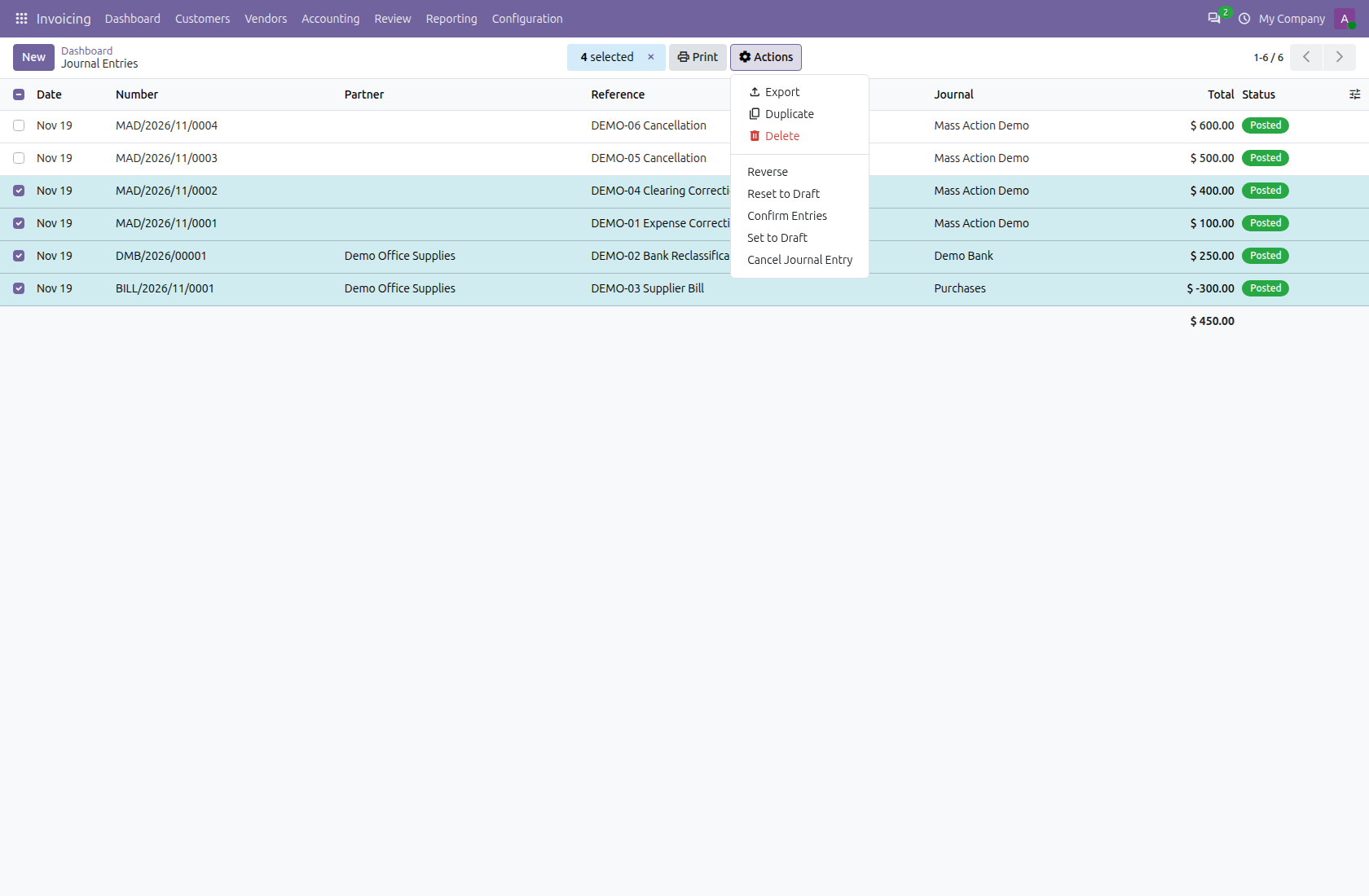
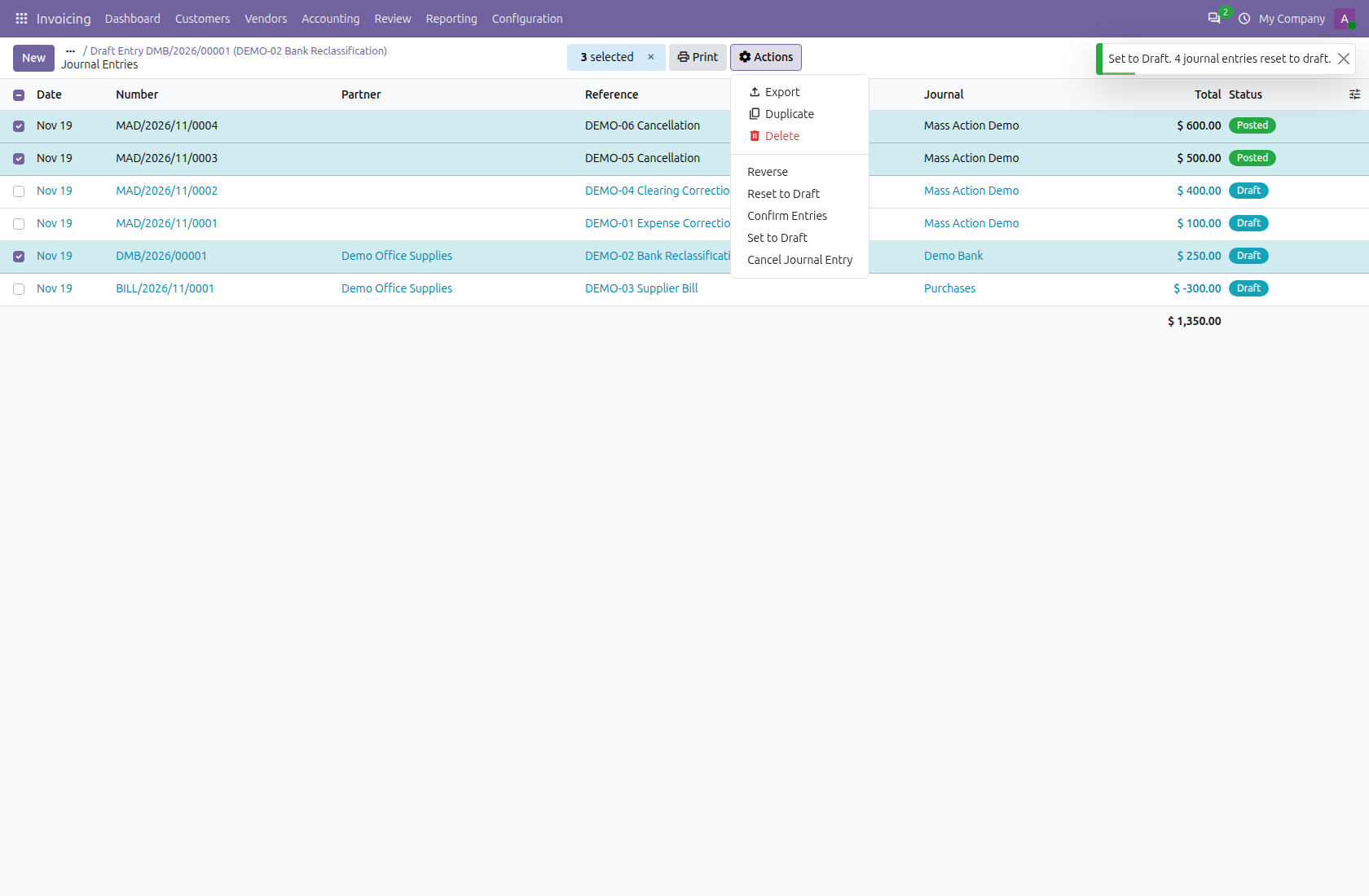
Filter the Journal Entries list to the records you want to correct. This example selects four posted entries: a $100 correction, a $250 bank transaction, a $300 supplier bill and a $400 clearing correction. Choose Actions → Set to Draft. The journal-entry list displays the vendor bill with its normal negative sign.

Select entries and choose Set to Draft — Mass Reset and Cancel Journal Entries

2. Review the Draft statuses and batch summary

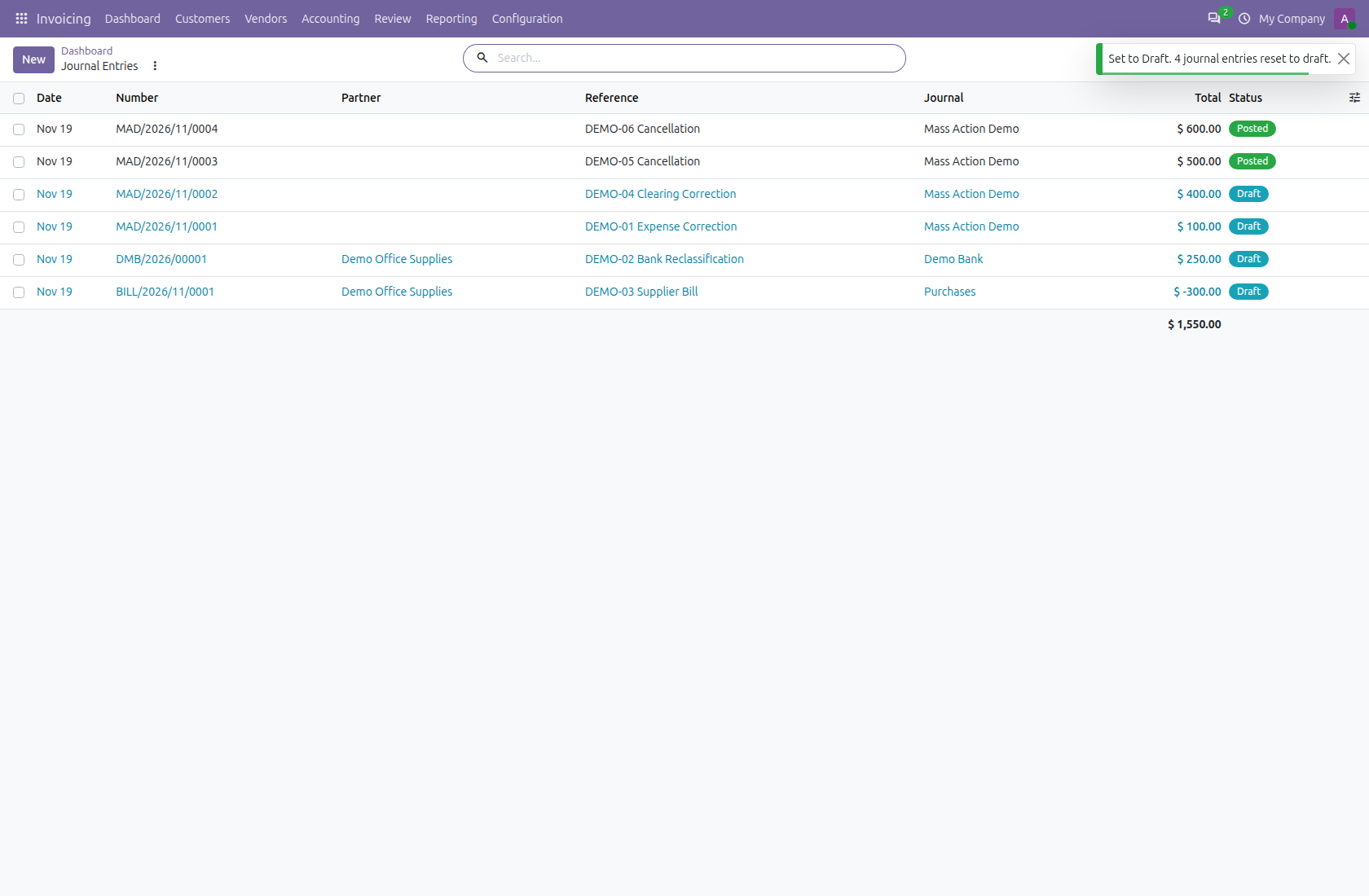
All four selected entries now show Draft. Their entry numbers remain the same; the two untouched entries remain Posted. The success notification reports four entries reset, and the list updates without a manual page reload. Any entries already in Draft would be skipped and counted.

Review the Draft statuses and batch summary — Mass Reset and Cancel Journal Entries

3. Inspect the entry before correcting it

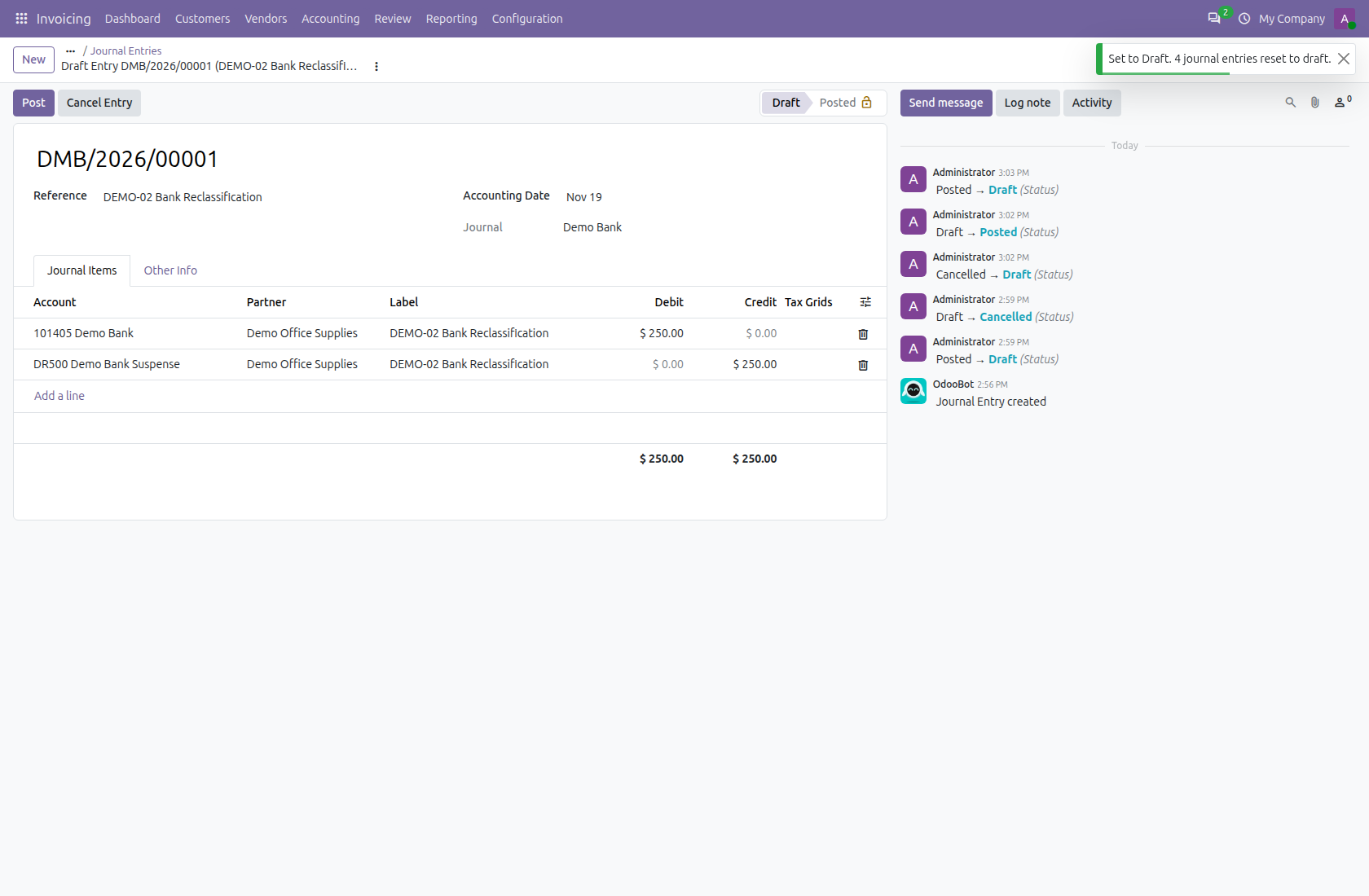
Open the $250 bank entry. Its original number, journal, reference, balanced debit/credit lines and chatter remain visible. The native Post and Cancel Entry buttons are available. Make any permitted correction and repost using Odoo’s usual workflow.

Inspect the entry before correcting it — Mass Reset and Cancel Journal Entries

4. Cancel Draft and Posted entries together

Return to the list. Select the $250 bank entry, now Draft, together with the untouched $500 and $600 Posted entries. Choose Actions → Cancel Journal Entry. You can process both states in one selection.

Cancel Draft and Posted entries together — Mass Reset and Cancel Journal Entries

5. Check the Cancelled result

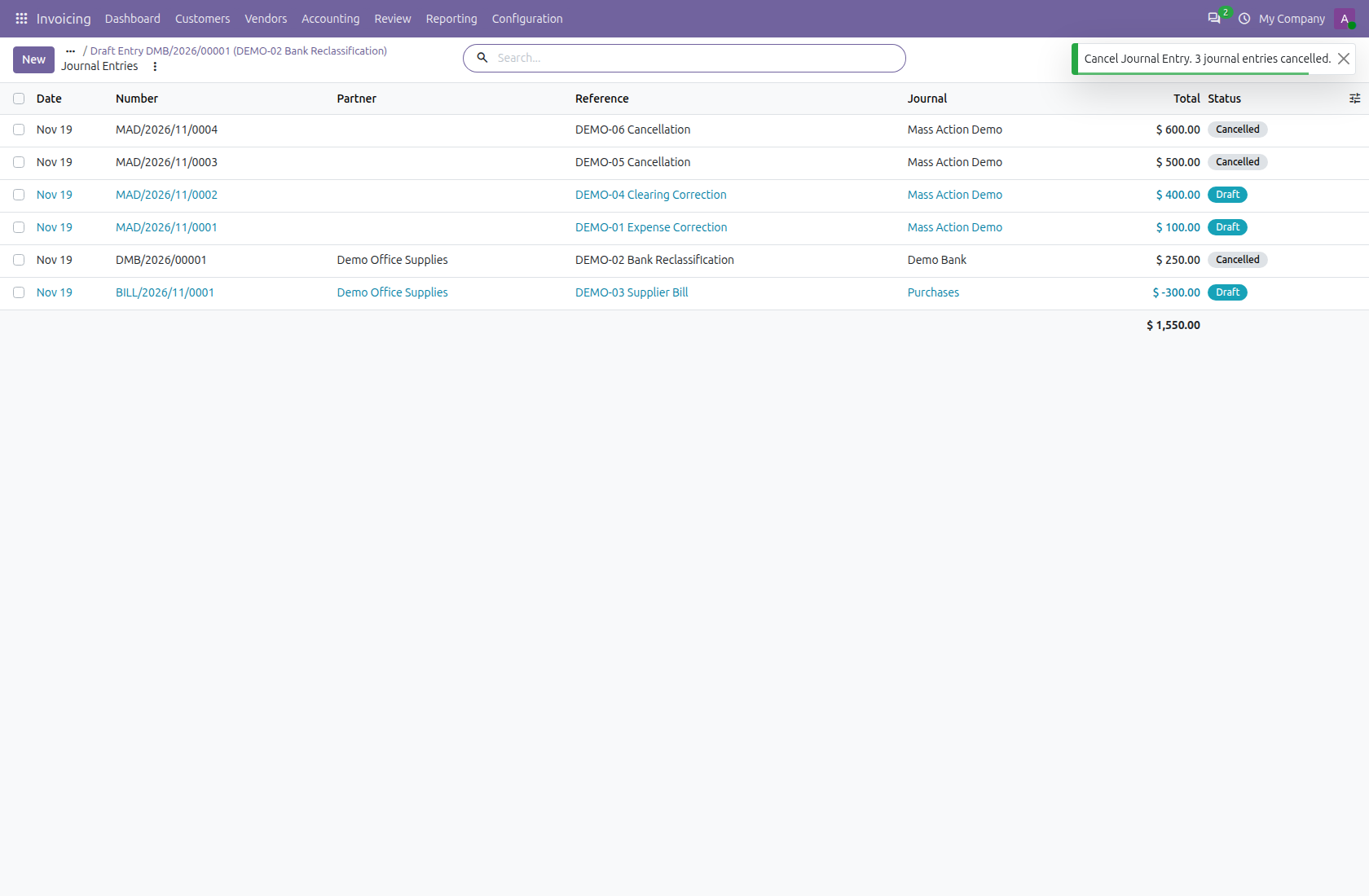
All three chosen entries now show Cancelled, and the notification reports three entries cancelled. The other reset entries stay Draft. The operation retains the journal entries and disables their automatic posting through native cancellation.

Check the Cancelled result — Mass Reset and Cancel Journal Entries

6. Review the retained cancelled entry

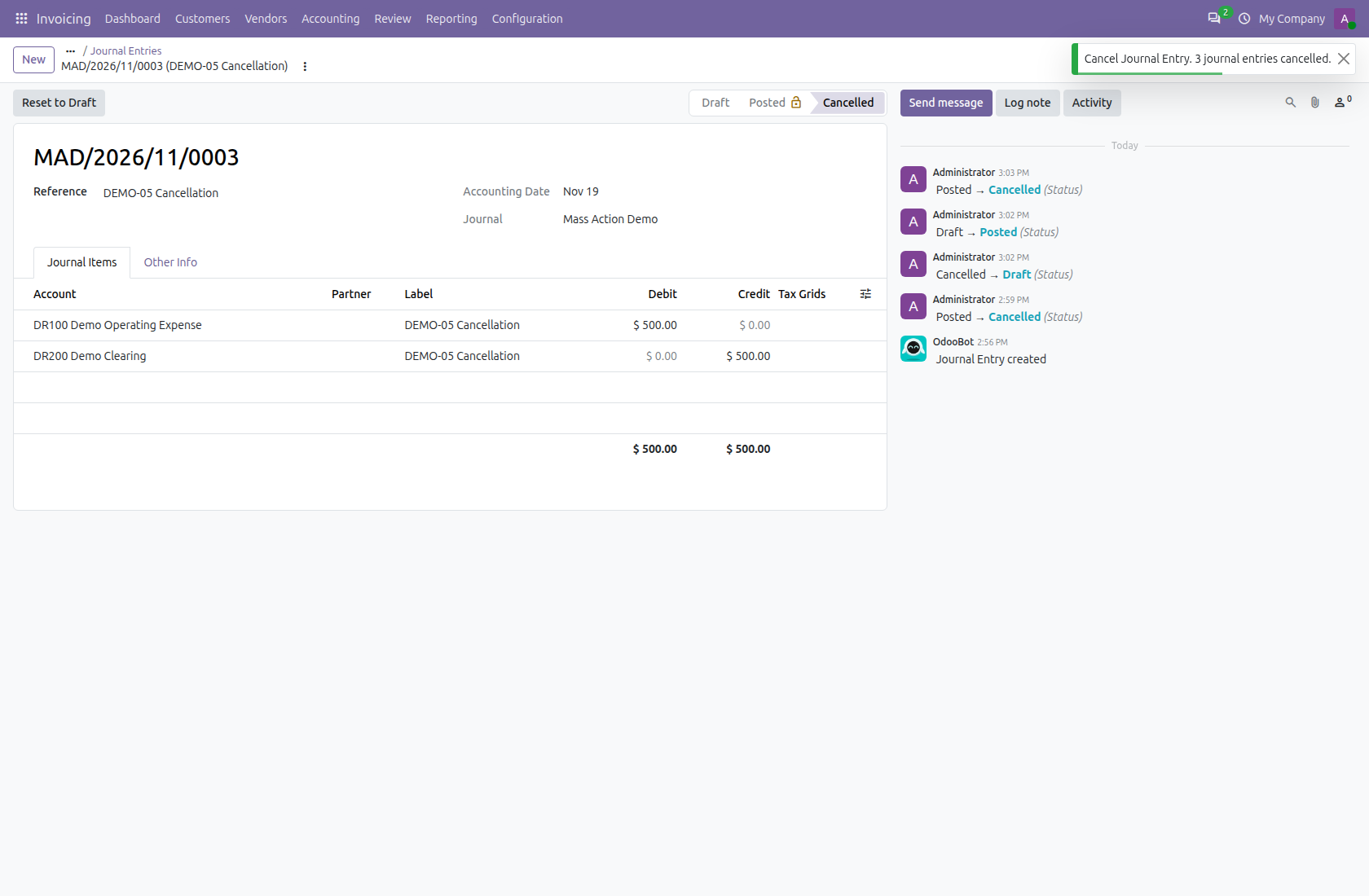
Open the $500 entry. It remains present with its original number, balanced journal lines and state history. The native Reset to Draft button is available for any later permitted correction; cancellation did not delete the entry.

Review the retained cancelled entry — Mass Reset and Cancel Journal Entries

7. Repeat safely and read the skipped-state feedback

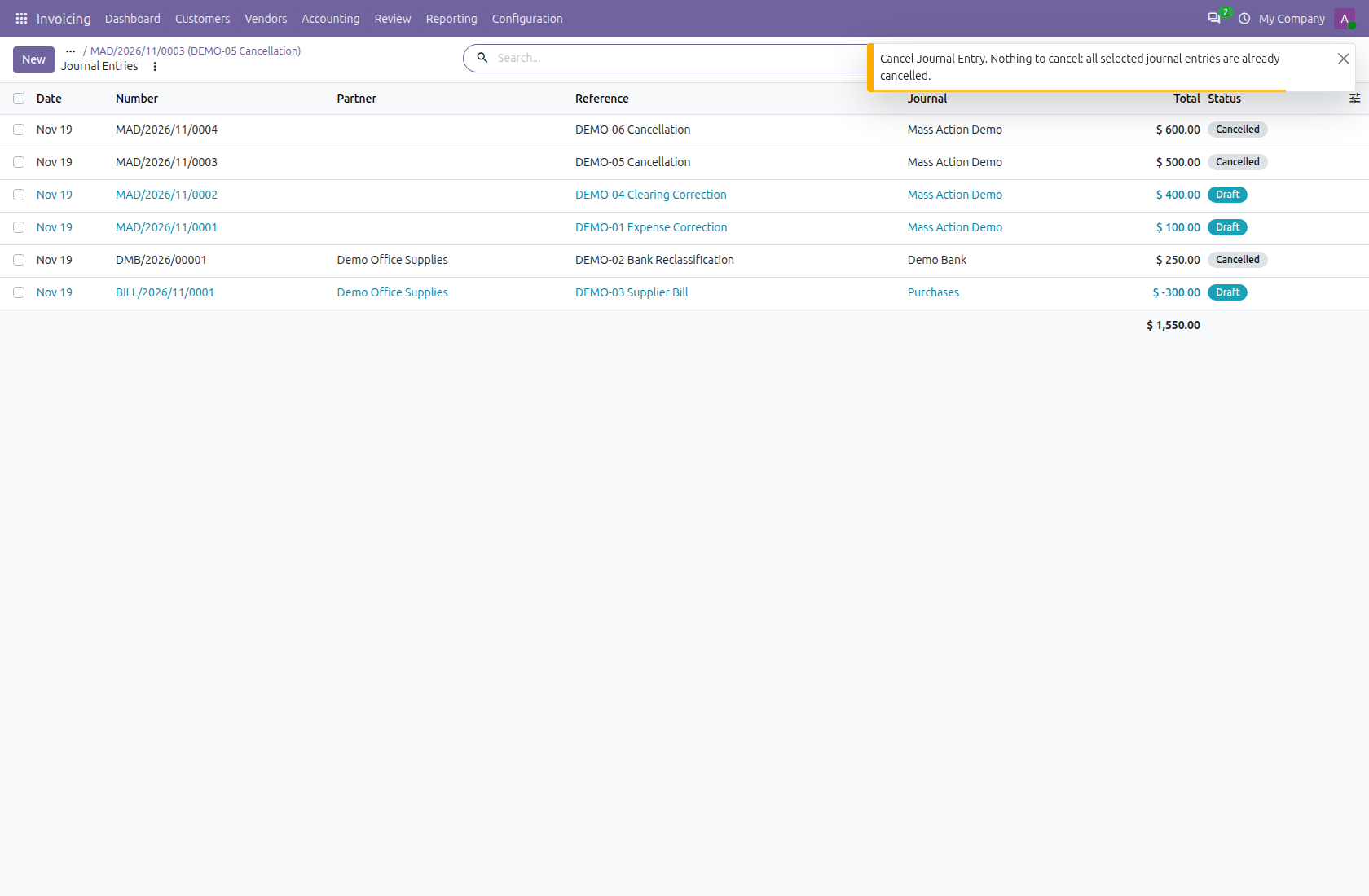
Run Cancel Journal Entry again on those same cancelled records. Nothing changes. A warning explains that all selected entries are already cancelled. A mixed selection instead reports processed entries plus the count skipped because they already had the target state.

Repeat safely and read the skipped-state feedback — Mass Reset and Cancel Journal Entries

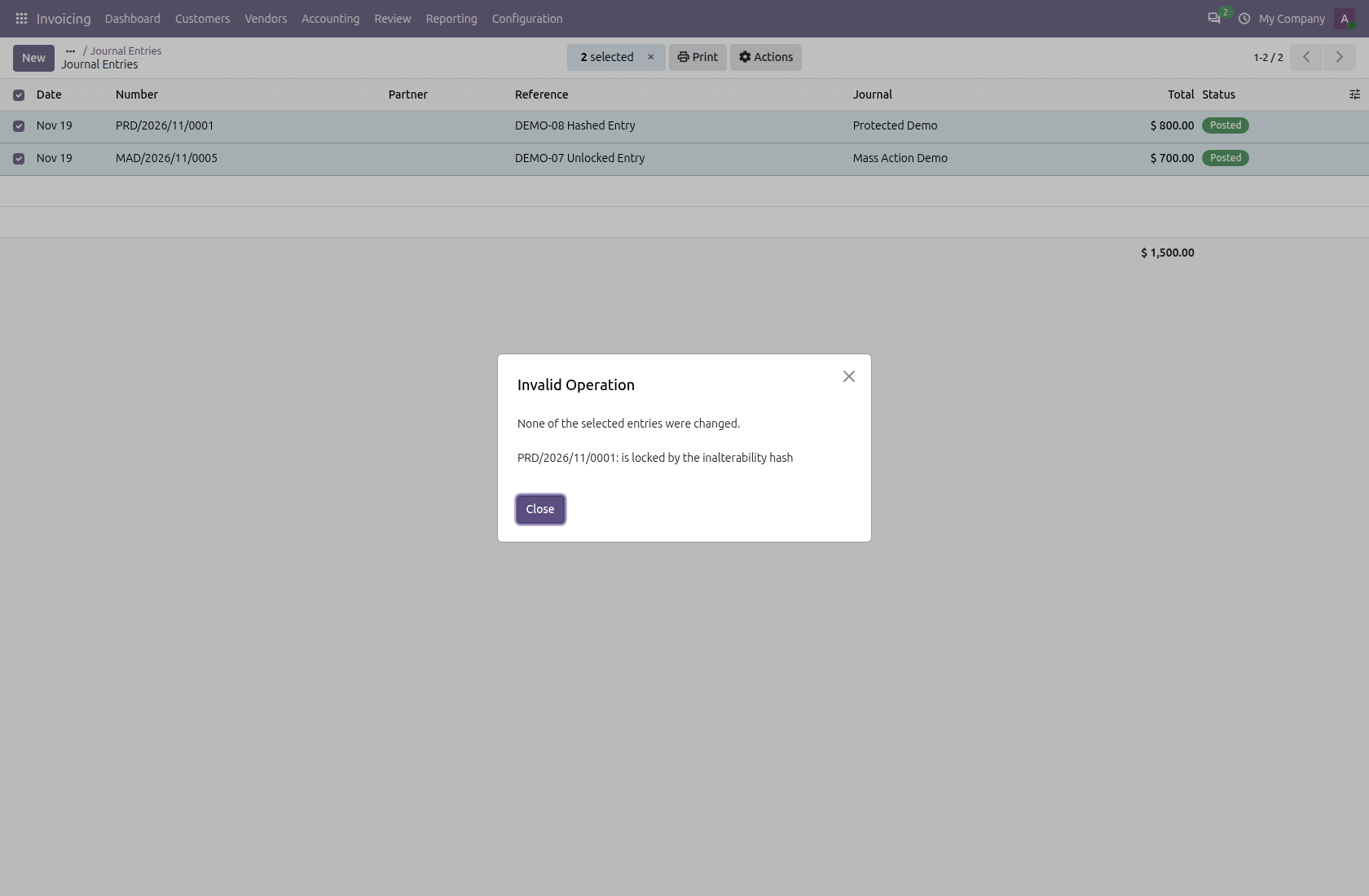
8. Understand why a protected batch is refused

This separate selection contains a normal $700 entry and a hash-locked $800 entry. Set to Draft names the protected record and explains that none of the selected entries changed. Both remain Posted. The same all-or-nothing behavior applies when native accounting validation raises a later error.

Understand why a protected batch is refused — Mass Reset and Cancel Journal Entries

Legal

License

Odoo Proprietary License v1.0 This software and associated files (the "Software") may only be used (executed, modified, executed after modifications) if you have purchased a valid license from the authors, typically via Odoo Apps, or if you have received a written agreement from the authors of the Software (see the COPYRIGHT file). You may develop Odoo modules that use the Software as a library (typically by depending on it, importing it and using its resources), but without copying any source code or material from the Software. You may distribute those modules under the license of your choice, provided that this license is compatible with the terms of the Odoo Proprietary License (For example: LGPL, MIT, or proprietary licenses similar to this one). It is forbidden to publish, distribute, sublicense, or sell copies of the Software or modified copies of the Software. The above copyright notice and this permission notice must be included in all copies or substantial portions of the Software. THE SOFTWARE IS PROVIDED "AS IS", WITHOUT WARRANTY OF ANY KIND, EXPRESS OR IMPLIED, INCLUDING BUT NOT LIMITED TO THE WARRANTIES OF MERCHANTABILITY, FITNESS FOR A PARTICULAR PURPOSE AND NONINFRINGEMENT. IN NO EVENT SHALL THE AUTHORS OR COPYRIGHT HOLDERS BE LIABLE FOR ANY CLAIM, DAMAGES OR OTHER LIABILITY, WHETHER IN AN ACTION OF CONTRACT, TORT OR OTHERWISE, ARISING FROM, OUT OF OR IN CONNECTION WITH THE SOFTWARE OR THE USE OR OTHER DEALINGS IN THE SOFTWARE

Terms

Terms and conditions

OdooSphere Apps Terms & Conditions

By purchasing an app from OdooSphere, the customer agrees to the following terms.

Payment

All payments must be completed immediately through the website checkout. Orders are processed only after successful payment confirmation from the payment provider.

Delivery

After payment confirmation, the purchased module will be delivered digitally as a ZIP file through email or the customer portal, where applicable.

Support Period

Each purchased app includes 90 days of free support from the purchase date.

  • Help during the installation process
  • Assistance with module setup and basic configuration
  • Bug fixes related to the purchased module
  • Guidance for using the app as described on the product page

Support Exclusions

  • Custom feature development
  • Changes for special business workflows
  • Odoo server setup, hosting, or deployment issues
  • Conflicts caused by third-party modules
  • Migration to another Odoo version unless clearly included
  • Issues caused by direct changes to the module source code
  • Training, data entry, or consulting beyond the purchased app scope

Compatibility

Apps are provided for the Odoo versions mentioned on the product page. The customer is responsible for selecting the correct Odoo version before purchase.

Refund Policy

Since apps are digital products delivered after payment, purchases are generally non-refundable. Refunds may be considered only if payment was duplicated, the ZIP file was not delivered, or the app cannot work on the listed compatible Odoo version due to a confirmed issue in the delivered module.

License & Usage

The purchased app is licensed for use by the purchasing customer or company. Reselling, redistributing, publishing, or sharing the module with third parties is not allowed without written permission from OdooSphere.

Updates

Free updates are not guaranteed unless specifically mentioned on the product page. Bug fixes within the 90-day support period may be provided when the issue is confirmed to be caused by the purchased app.

Limitation of Liability

OdooSphere is not responsible for business losses, data loss, downtime, third-party service issues, or problems caused by incorrect installation, custom changes, or incompatible modules.

Contact: odoosphere10@gmail.com

Related modules

More in this category

Reviews

Discuss this module

No reviews yet

Logged-in users can ask questions, discuss implementation details, and rate this module. Your rating updates the app score across the marketplace.